Microsoft Entra ID (Formerly Azure AD)
Configure SAML-based SSO between Microsoft Entra ID and Scalar.
Requirements
- SSO/SAML requires a Scalar Enterprise subscription. Read more about our pricing.
- You are the owner or admin of your Scalar team.
1. Create a New Enterprise Application
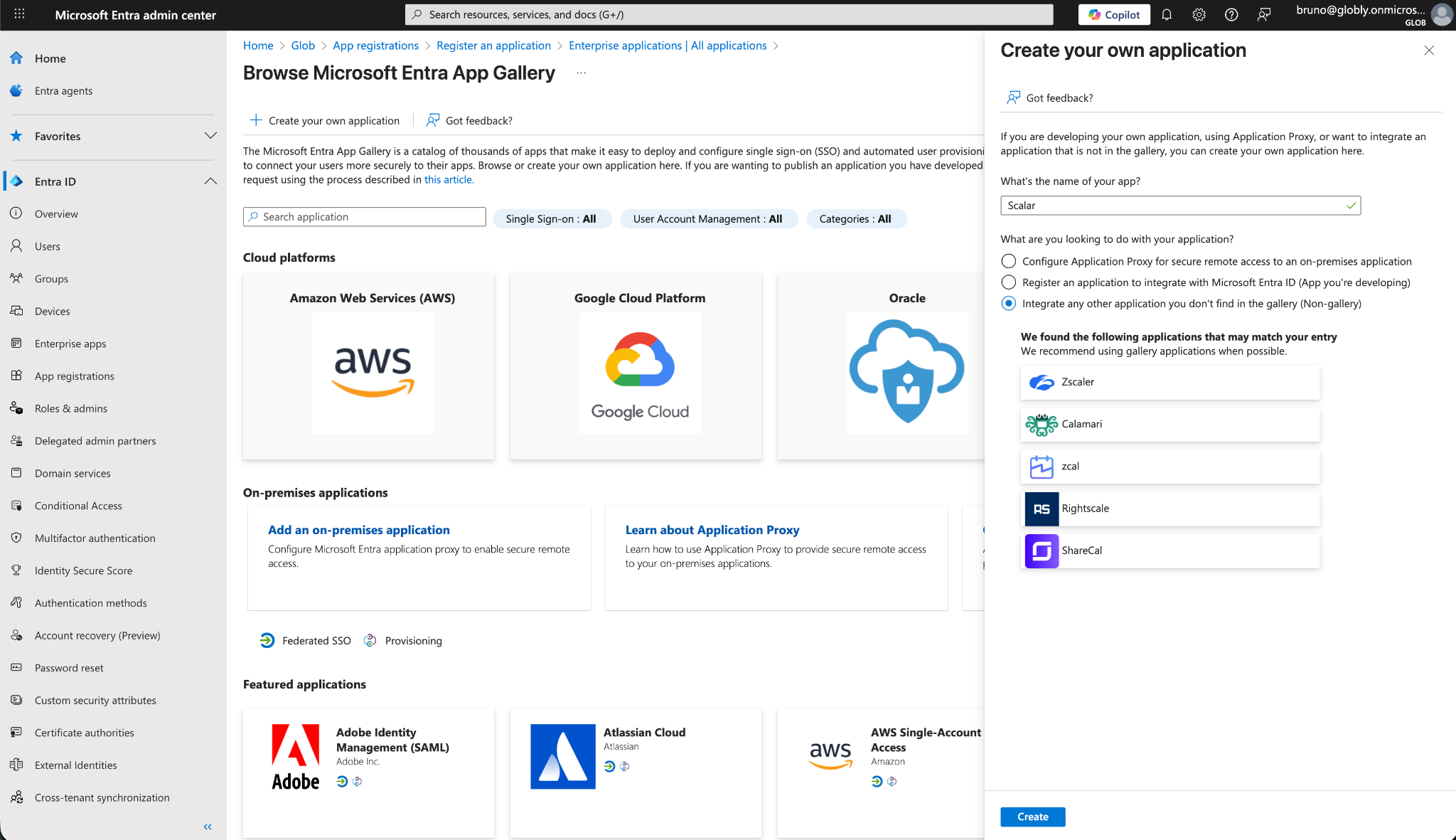
Navigate to Enterprise applications in the Microsoft Entra ID sidebar and select New application. Choose Create your own application and enter a name (e.g., "Scalar"):
Create Your Own Application
2. Assign Users and Groups
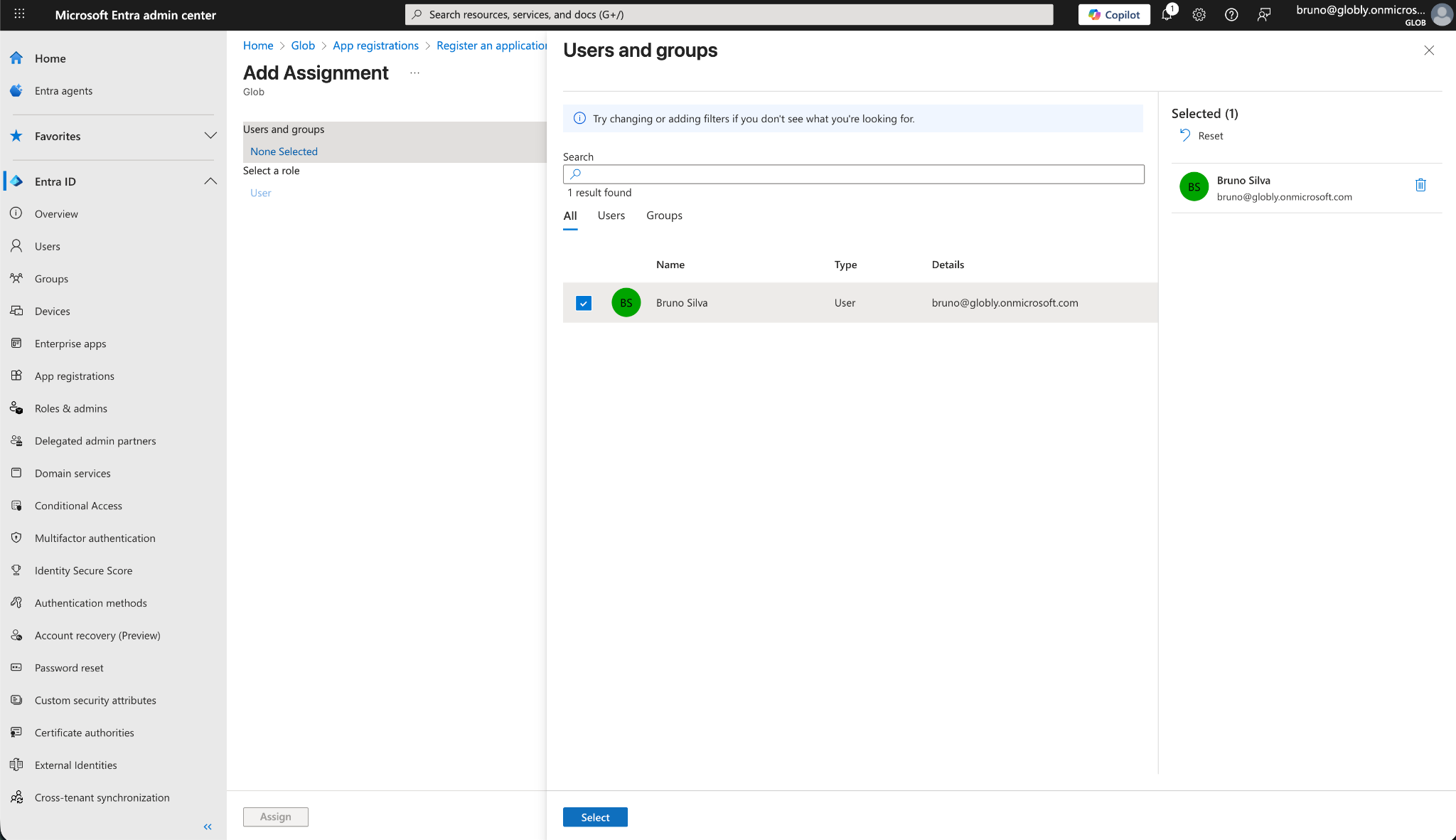
After creating the application, assign the users and groups that should have access to Scalar:
Users and Groups
3. Select SAML Authentication
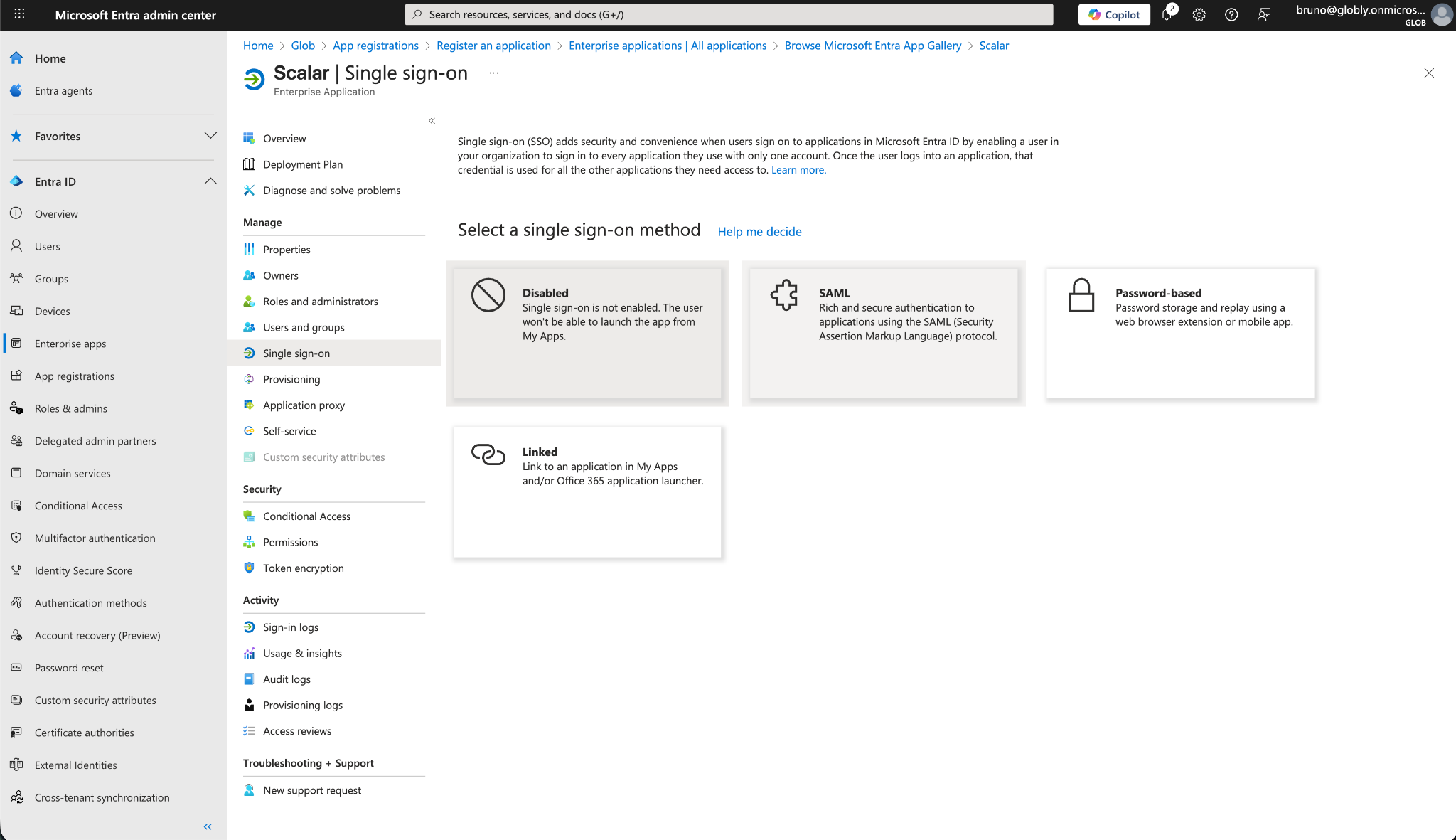
Go to Single sign-on and select SAML as the authentication method:
Select Single Sign-On Method
4. Create a Connection in Scalar
Before configuring SAML settings, create a new SSO connection in Scalar:
- Navigate to Team > Security in Scalar
- Under Advanced Security, enable Single Sign-On
- Click Setup Connection to create a new SSO connection
This will provide you with the values needed for the next step.
5. Configure Basic SAML Settings
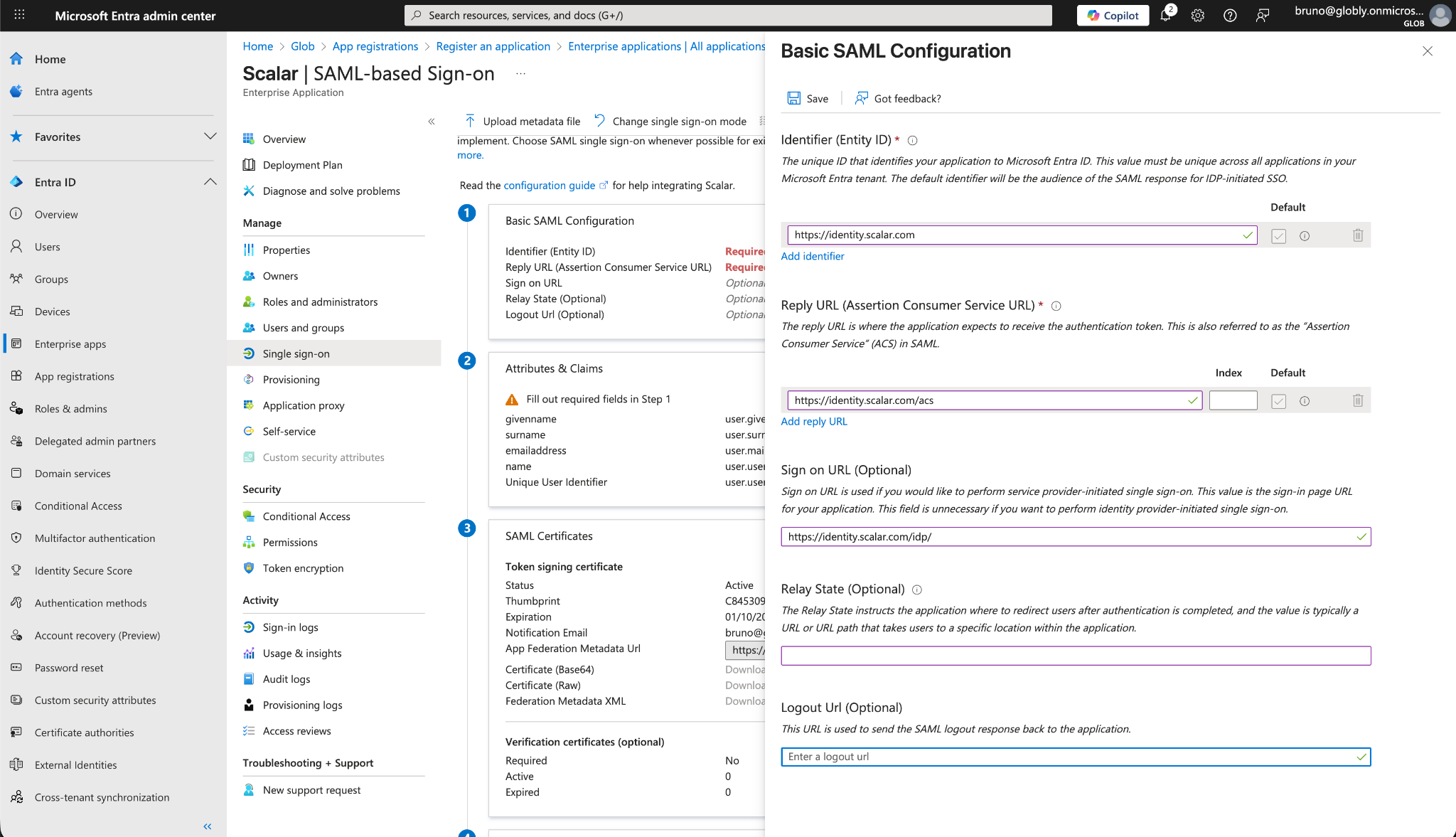
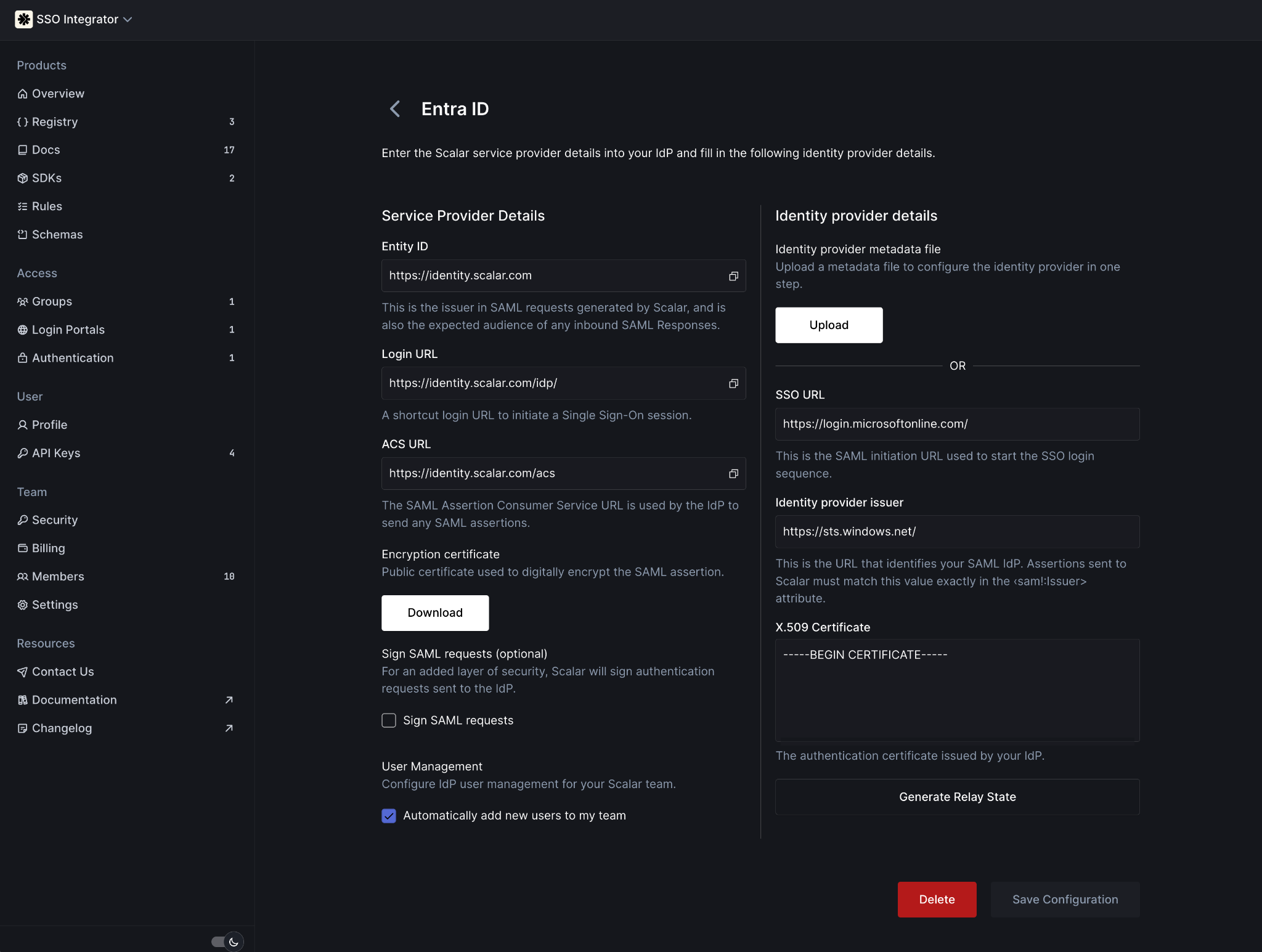
Configure the Basic SAML Configuration with the following service provider details:
Basic SAML Configuration
| Field | Value |
|---|---|
| Identifier (Entity ID) | https://identity.scalar.com |
| Reply URL (Assertion Consumer Service URL) | https://identity.scalar.com/acs |
| Sign on URL (Optional) | "Login URL" from Scalar |
| Relay State (Optional) | "Generate Relay State" in Scalar |
6. Copy IdP Details to Scalar
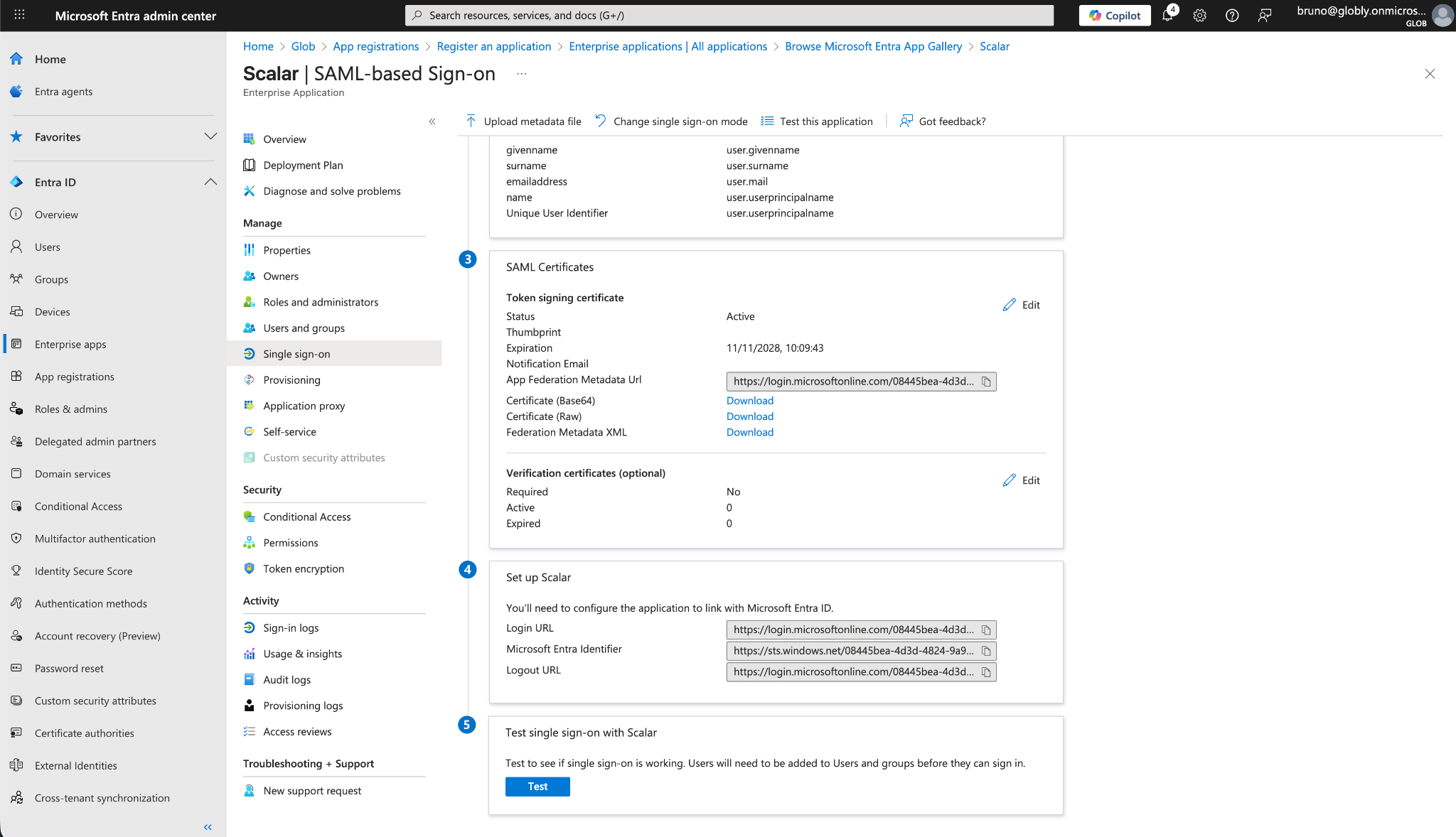
Copy the IdP details from Microsoft Entra ID into Scalar:
| Scalar | Microsoft Entra ID |
|---|---|
| Login URL | SSO URL |
| Microsoft Entra Identifier | Identity Provider Issuer |
| Certificate (Base64) | X.509 Certificate |
SAML Certificates
Service Provider Details
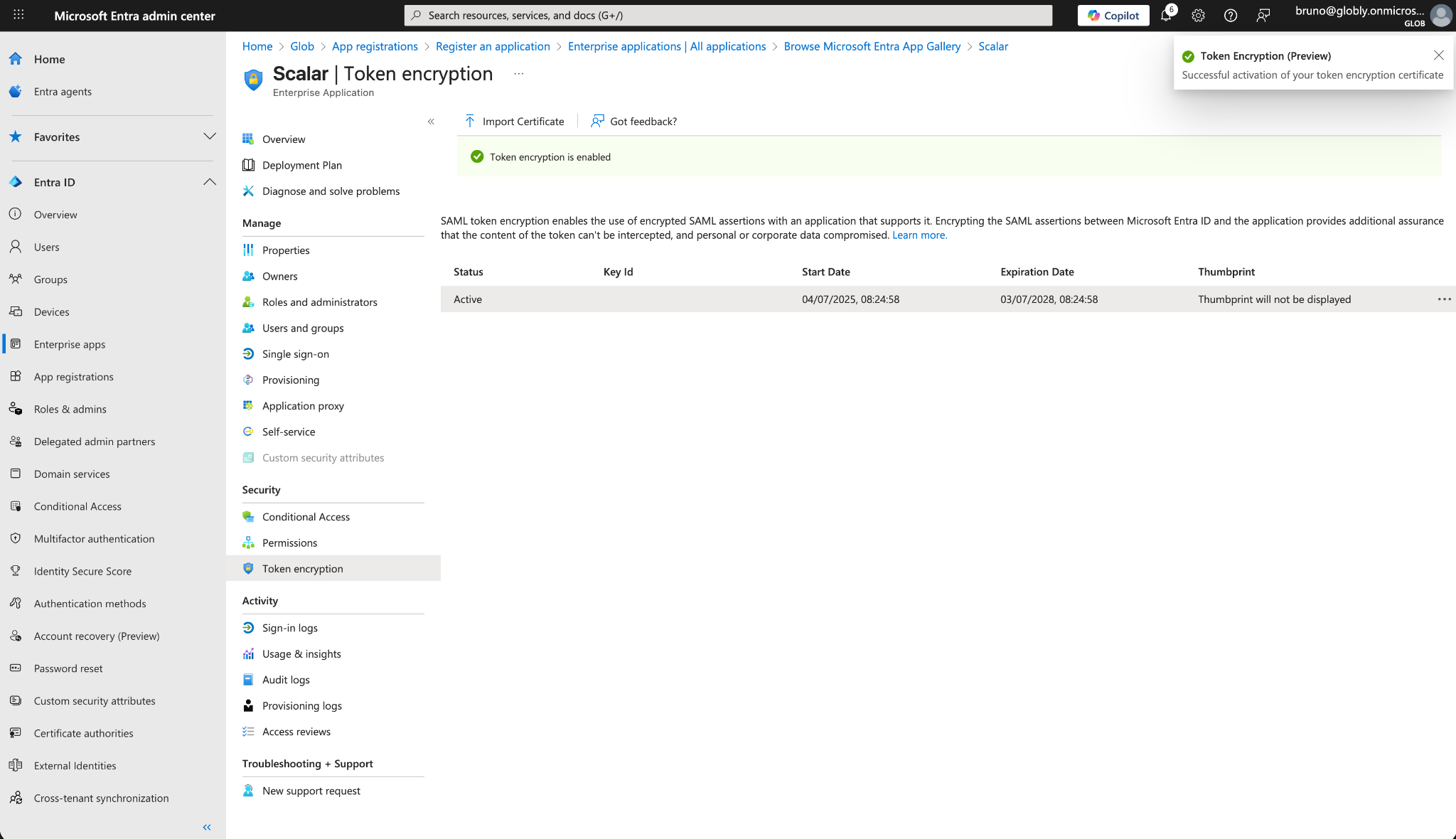
7. Enable Token Encryption
Scalar requires token encryption for SAML assertions. Download the encryption certificate from the Scalar and import it into Microsoft Entra ID under Token encryption:
Import the Encryption Certificate
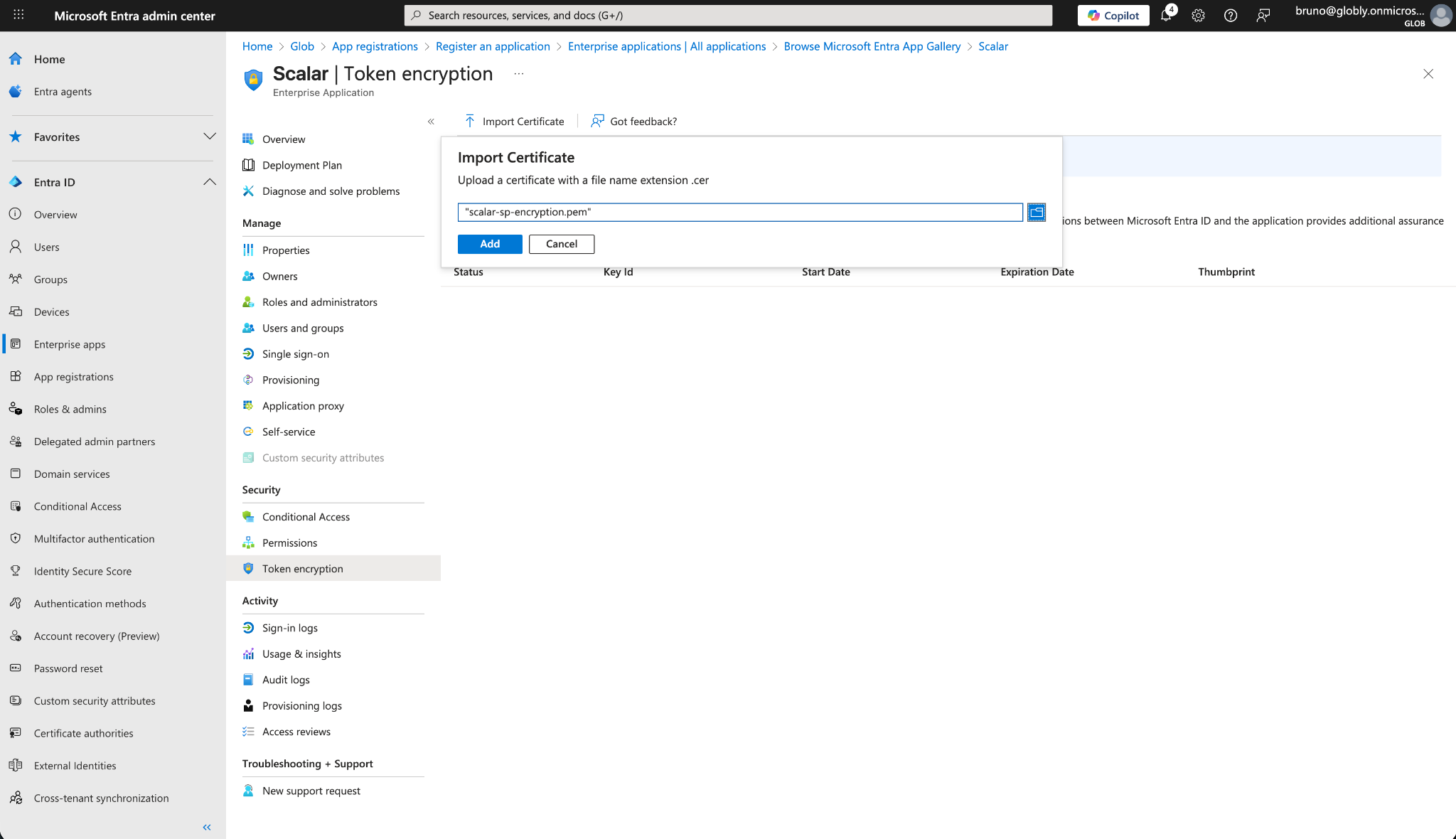
Configure Token Encryption
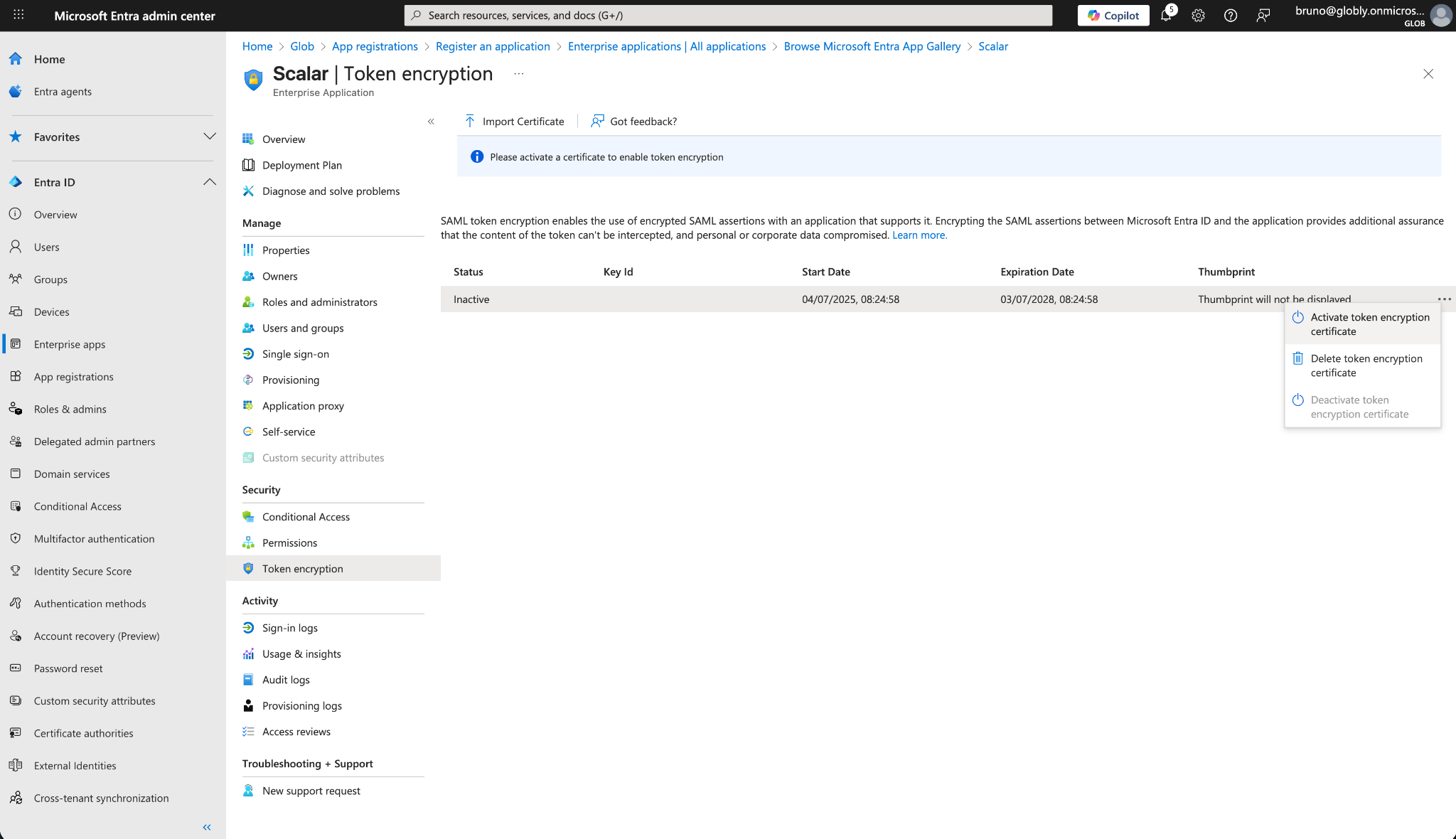
Verify Token Encryption is Enabled
Done!
Your organization is now ready to use Scalar SSO with Microsoft Entra ID! If you run into any issues, double-check your settings - or just reach out to our support team, we're here to help!

