Schemas
This guide will help you start using Scalar Schemas to manage and share JSON Schema objects across your registry APIs in our dashboard on scalar.com, which can be done alongside our CLI.
Make sure you have created a Scalar Account & are logged in (see create account guide)
What are Scalar Schemas?
Scalar Schemas allow you to publish and manage standalone JSON Schema objects outside of OpenAPI documents. These reusable JSON Schema components can be referenced across multiple APIs in your registry, providing a centralized way to manage shared data models and validation rules.
Unlike schemas defined within OpenAPI documents, Scalar Schemas are:
- Standalone: Managed independently from any specific API
- Reusable: Can be referenced by multiple APIs in your registry
- Versioned: Each schema has its own versioning independent of your APIs
- Shareable: Can be shared publicly or kept private within your team
Create your first schema
Schemas allow you to reference shared components across your registry APIs.
Open APIs in the dashboard. In the Schemas section, click New Schema.
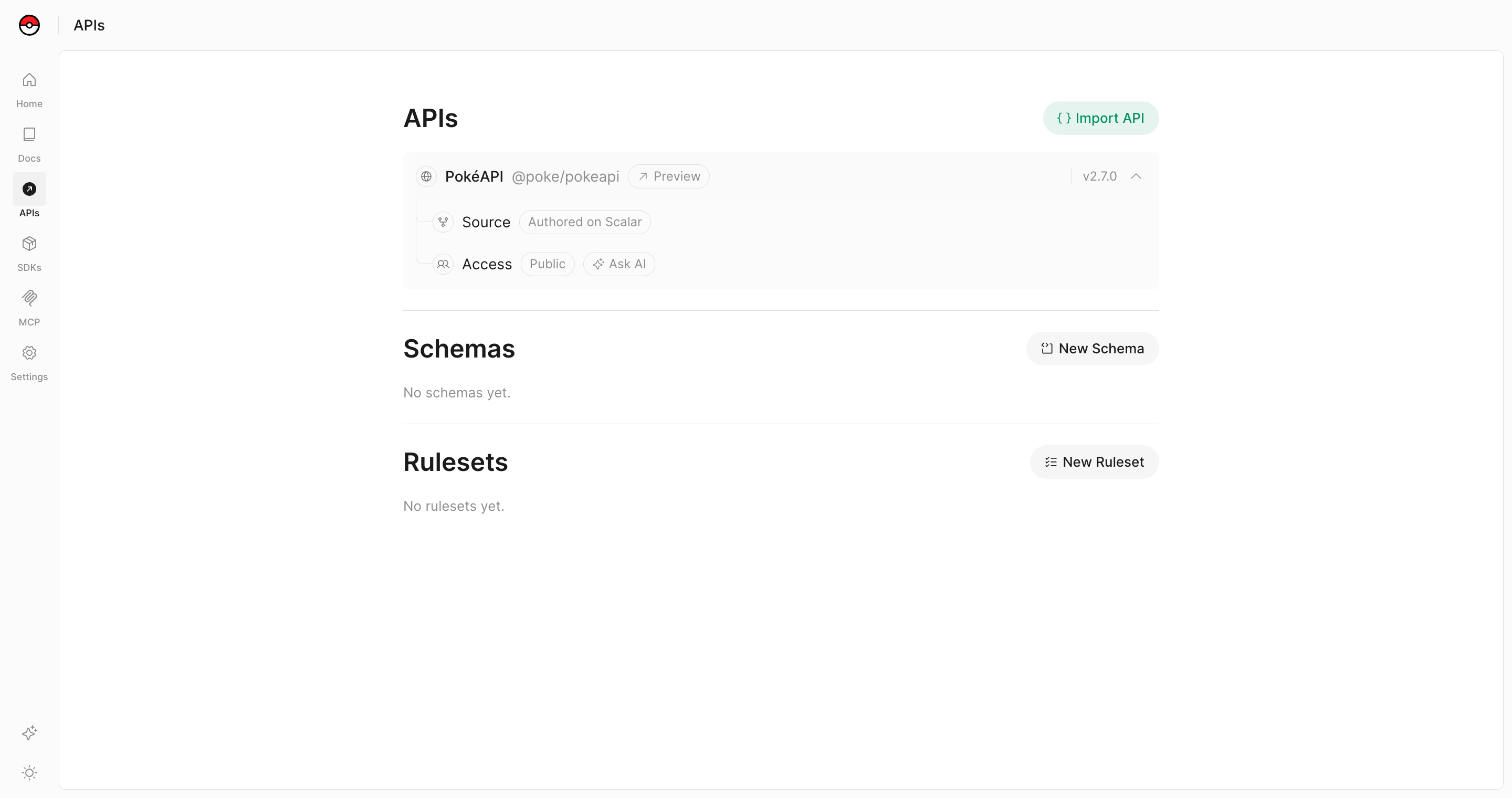
The Create Schema dialog asks for:
- Schema Title: a descriptive name that identifies its purpose (e.g., "User Profile", "Payment Method", "Address Schema")
- The schema itself (optional): upload a file, paste JSON or YAML, or paste a link to fetch it. Leave it empty to start from
{}. - Schema Path: the team namespace, slug, and version to publish it under. The path is how you reference the schema from your APIs.
Click Create, and Scalar opens the schema's Source page.
Configure Schema Details
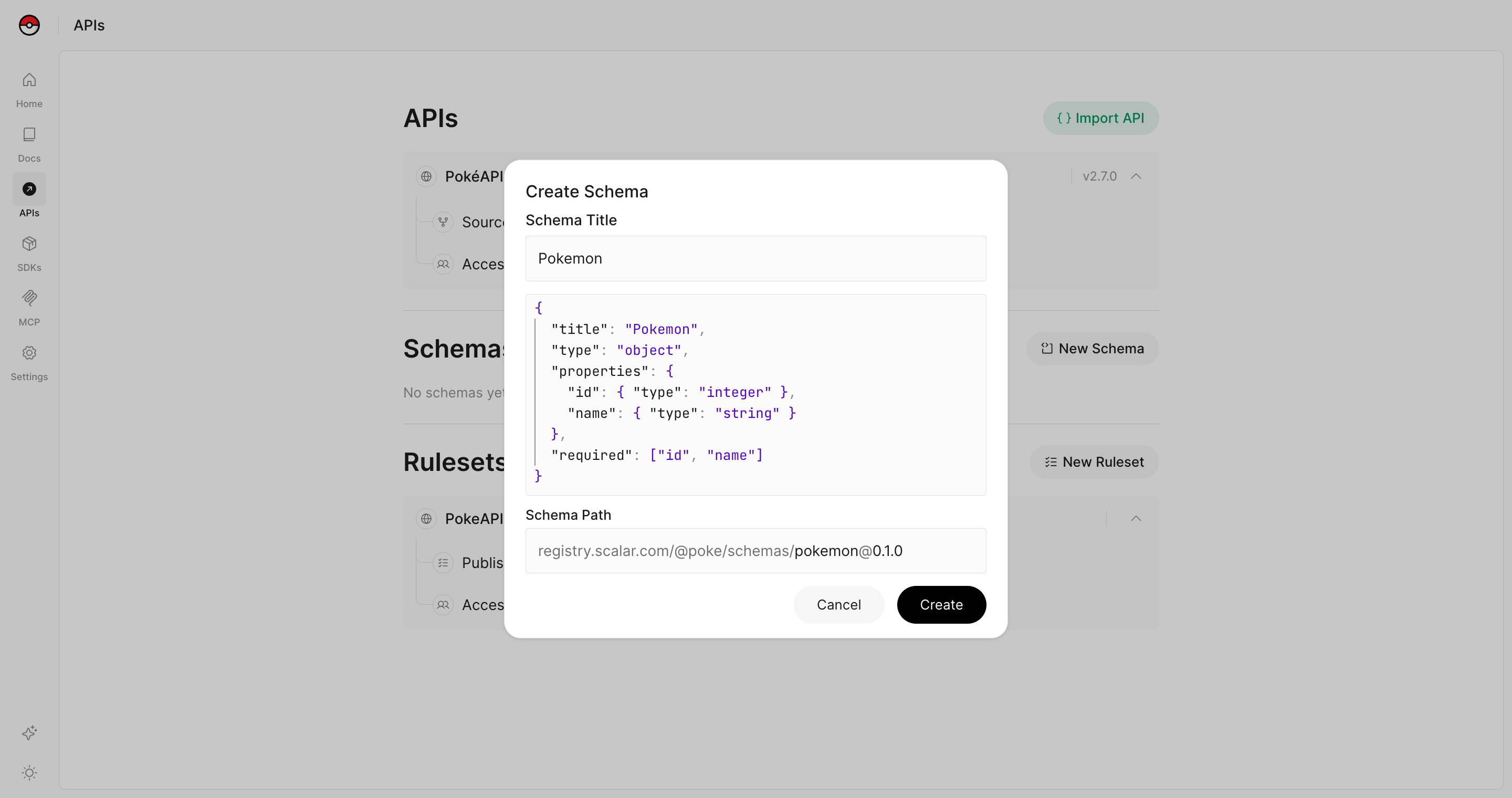
Open the schema's Settings page to change its details:
Name: The schema's display name.
Registry path: The slug in the schema's registry path.
Description: Explain what this JSON Schema defines and how it should be used.
Current version: The version served by default (e.g., 0.1.0, 1.0.0). You can publish new versions as the schema changes.
Namespace: The team namespace the schema is published under. Together with the slug, it makes up the registry path you use to reference the schema.
Name and description save automatically. Changes to the path, version, and namespace apply when you click Save.
Open the schema's Access page to choose whether it is:
- Public: Share your schema with the world - anyone can reference it via the registry URL
- Private: Keep your schema within your team - only invited users and access groups can view and reference it
Define Your JSON Schema
Edit the schema on its Source page.
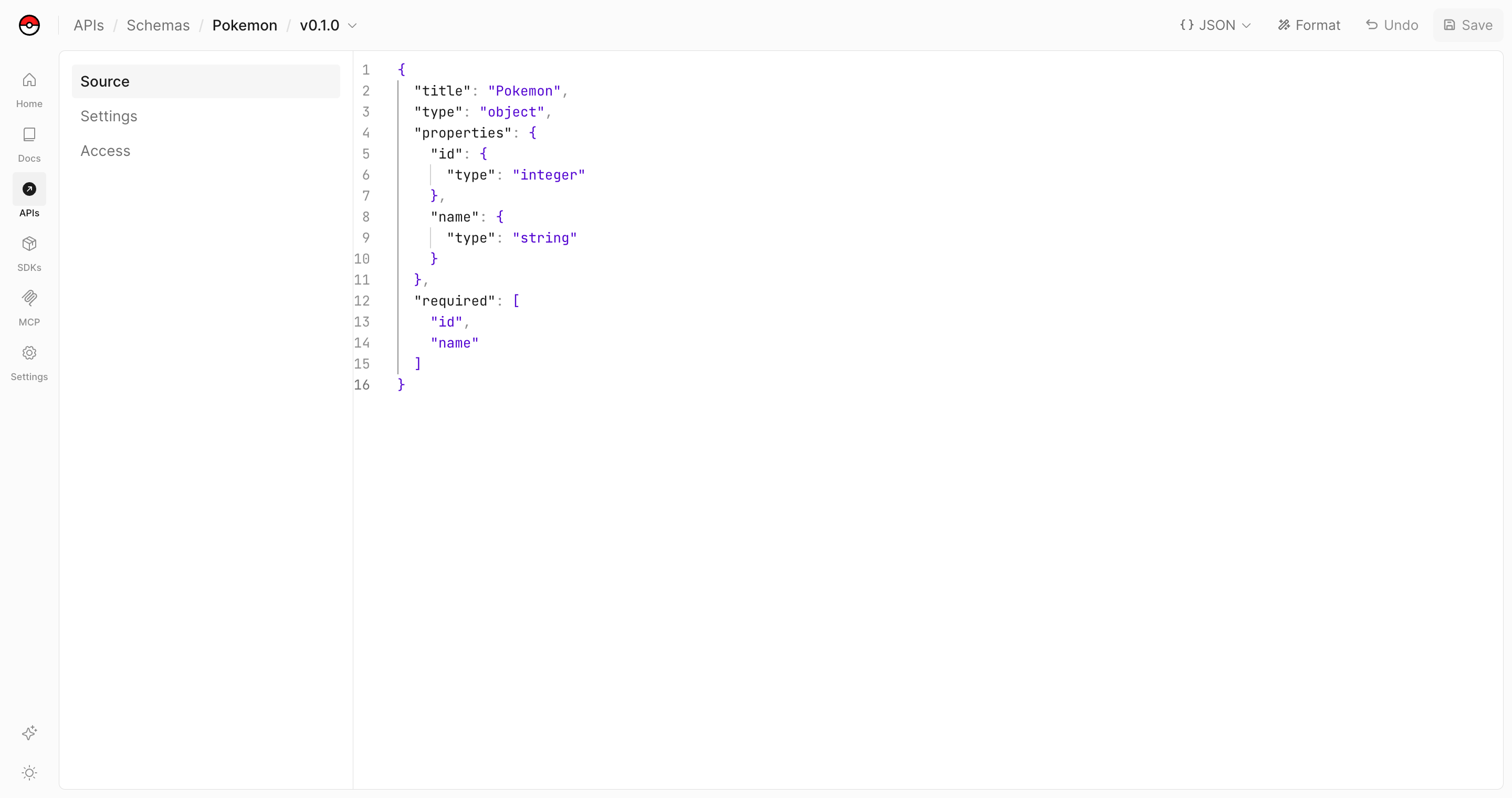
Here's an example JSON Schema you might create:
{
  "$schema": "https://json-schema.org/draft/2020-12/schema",
  "type": "object",
  "title": "User Profile",
  "description": "A user profile schema with contact information",
  "properties": {
    "id": {
      "type": "string",
      "format": "uuid",
      "description": "Unique identifier for the user"
    },
    "email": {
      "type": "string",
      "format": "email",
      "description": "User's email address"
    },
    "name": {
      "type": "object",
      "properties": {
        "first": {
          "type": "string",
          "minLength": 1
        },
        "last": {
          "type": "string",
          "minLength": 1
        }
      },
      "required": ["first", "last"]
    },
    "createdAt": {
      "type": "string",
      "format": "date-time"
    }
  },
  "required": ["id", "email", "name"]
}
Publish Your Schema
After defining your JSON Schema, click Save on the Source page to make it available in the registry. You can then reference it by its registry path.
The registry path follows this format:
registry.scalar.com/@your-team/schemas/your-schema-name@version
Pin to a specific sha
Anywhere a version can go, you can put a sha instead — either the document's content sha or the git commit it came from:
registry.scalar.com/@your-team/schemas/your-schema-name@03e959a
The sha can be a prefix (6 to 64 hex characters) and is matched like git: a prefix that matches more than one document returns a 404 rather than guessing. Versions always win, so a value that matches an existing version keeps resolving to that version. A full 64-character content sha on a public document is immutable, so it is served with a long-lived cache. Sha addressing works the same way for APIs (/@your-team/apis/…@<sha>).
Reference Schemas in Your APIs
Once you've published a schema, you can reference it in your OpenAPI documents using $ref. This allows you to reuse the same JSON Schema definition across multiple APIs.
Internal References
If the schema is in the same namespace, you can reference it using a relative path:
components:
  schemas:
    User:
      $ref: '@your-team/schemas/user@1.0.0'
External References
For schemas in other namespaces or public schemas, use the full registry URL:
components:
  schemas:
    User:
      $ref: 'https://registry.scalar.com/@other-namespace/schemas/user@1.0.0'
Example: Using a Schema in an OpenAPI Document
openapi: 3.1.0
info:
  title: User API
  version: 1.0.0
paths:
  /users:
    get:
      responses:
        '200':
          description: List of users
          content:
            application/json:
              schema:
                type: array
                items:
                  $ref: '@your-team/schemas/user@1.0.0'
Use the CLI to Manage Schemas
You can also use our CLI to interface with Scalar Schemas programmatically. This is especially useful for CI/CD pipelines and automated workflows.
Authentication
First, make sure you're authenticated with the CLI:
scalar auth login
Or using a token directly:
scalar auth login --token your-api-token
Publish a Schema
To publish a JSON Schema file to the registry:
scalar schema publish ./schema.json --namespace your-team --name user --version 1.0.0
Required Parameters:
file: Path to your JSON Schema file--namespace: Your Scalar team namespace--name: Name identifier for the schema
Optional Parameters:
--version: Schema version (e.g., 1.0.0, defaults to 0.0.1 if not specified)--private: Make schema private (default: false)--force: Force override an existing version (default: false)
Examples:
# Basic publish
scalar schema publish ./schemas/user.json --namespace your-team --name user

# Publish with version and make private
scalar schema publish ./schemas/payment-method.json --namespace your-team --name payment-method --version 2.0.0 --private

# Force update existing version
scalar schema publish ./schemas/user.json --namespace your-team --name user --version 1.0.0 --force
List Schemas
View all schemas for your team namespace:
scalar schema list --namespace your-team
This will display all schemas in your namespace with their versions and access levels.
Update Schema Metadata
Update schema metadata (name, description) without re-uploading the file:
scalar schema update --namespace your-team --name user --description "Updated user profile schema"
Delete a Schema
Remove a schema from the registry:
scalar schema delete --namespace your-team --name user --version 1.0.0
Note: Deleting a schema version will break any references to it in your OpenAPI documents. Make sure to update all references before deleting.
Best Practices
Versioning
- Use semantic versioning for your schemas (e.g.,
1.0.0,1.1.0,2.0.0) - Increment the major version when making breaking changes
- Increment the minor version when adding new optional properties
- Increment the patch version for bug fixes and clarifications
Schema Design
- Keep schemas focused and reusable - avoid creating overly specific schemas that can only be used in one context
- Use descriptive property names and include
descriptionfields for better documentation - Leverage JSON Schema validation features like
format,pattern,minLength,maxLength, etc. - Consider using
$defsfor complex nested structures that might be reused
Access Control
- Use public schemas for widely-shared data models that multiple teams or organizations might reference
- Use private schemas for internal data models specific to your organization
- Consider creating separate schemas for internal vs. external representations of the same data
Organization
- Use consistent naming conventions across your schemas
- Group related schemas by creating a naming pattern (e.g.,
user-*,payment-*,address-*) - Document your schemas well with descriptions to help other developers understand their purpose
Integration with CI/CD
You can integrate schema publishing into your CI/CD pipelines to automatically publish schemas when they're updated in your repository.
Example GitHub Actions workflow:
# .github/workflows/publish-user-schema.yml
name: Publish User Schema

on:
  push:
    branches:
      - main
    paths:
      - 'schemas/**'

jobs:
  publish:
    runs-on: ubuntu-latest
    steps:
      - name: Checkout repository
        uses: actions/checkout@v6

      - name: Setup Node.js
        uses: actions/setup-node@v6
        with:
          node-version: 24

      - name: Log in to Registry
        run: npx @scalar/cli auth login --token ${{ secrets.SCALAR_API_KEY }}

      - name: Publish Schema
        run: |
          npx @scalar/cli schema publish ./schemas/user.json \
            --namespace your-team \
            --name user \
            --version 1.0.0
This workflow will automatically publish your schemas whenever they're updated in your repository, ensuring your registry stays in sync with your source code.
What did you think of this content?