Managing Your SDK
After you create an SDK, the dashboard is where you build it, track versions, download artifacts, and manage settings. This page walks through the day-to-day lifecycle. Configuration lives in the Configuration guide, and shipping to registries in Publishing.
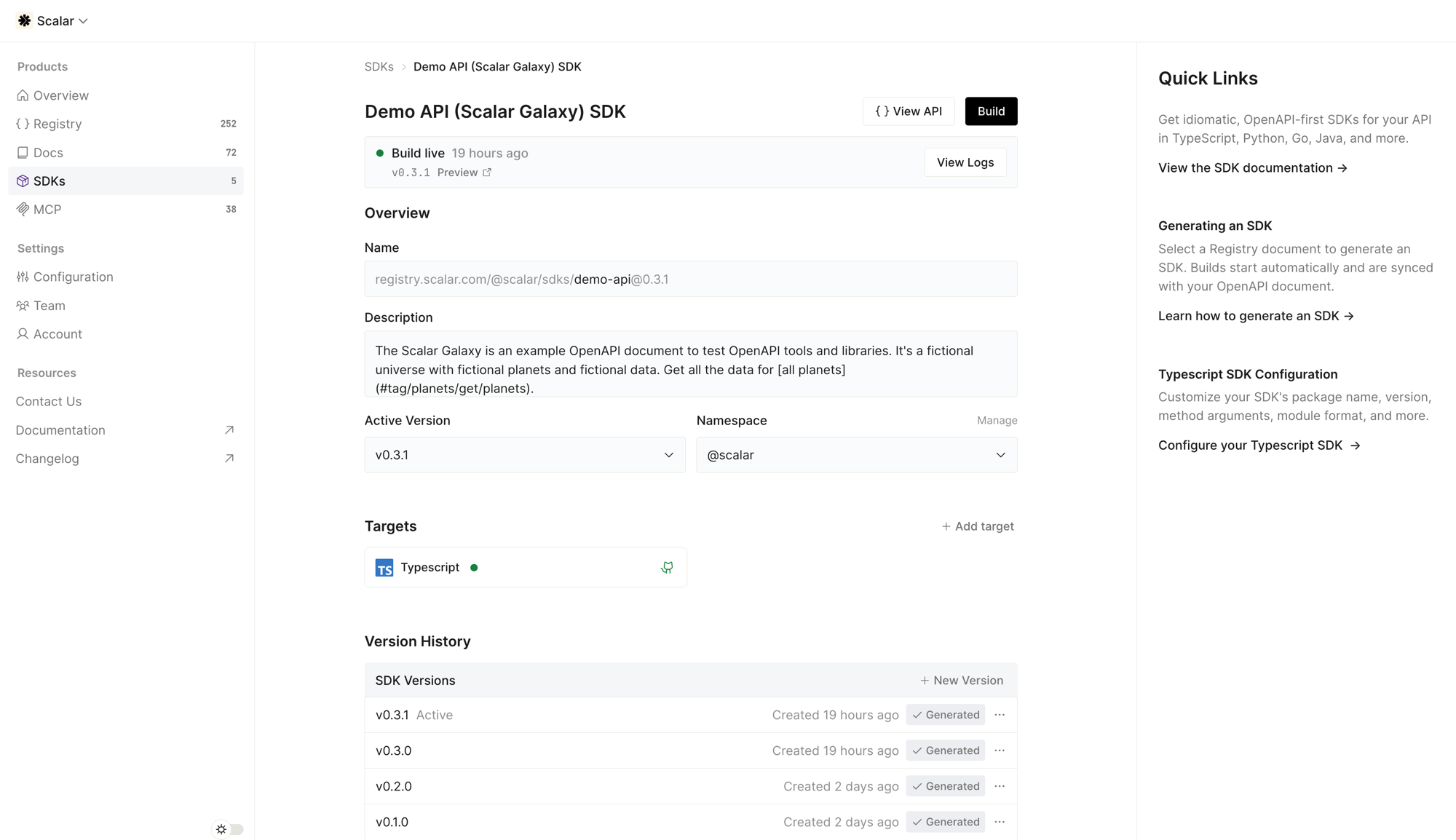
The overview page
Each SDK opens to an overview with:
- Name and description: human-readable metadata used in generated packages. Edit them inline.
- Active version: the version currently served from the registry.
- Namespace: the registry namespace the SDK is published under.
- Targets: every configured language, with its build and GitHub sync status.
- Version history: every version and its per-target build status.
Linking an API
An SDK is generated from an OpenAPI document in your registry. The SDK stays bound to that document, so regenerating picks up the latest API changes. You can re-link the SDK to a different document, or unlink it (which pauses builds until you link one again) from the SDK settings.
Building
A build generates every configured target from the current OpenAPI document and configuration.
Start a build
Click Build, or Save and Build after editing the configuration. Scalar generates each target.
Watch the status
Each target shows a live status: pending while it generates, generated on success, or failed. Open the logs to see the output or the error for a target.
Builds sync to GitHub
If a target is linked to a repository, the build opens or updates a pull request there. If publishing is enabled, merging that pull request releases the version.
SDK generation is part of our paid plans at $100 per month per target. When you add a new target on a paid plan, the dashboard shows a cost confirmation before the first build.
Versions
SDK versions are explicit, so you control exactly what is built and released.
- Create a new version: draft a new version at a specific semver, targeting a specific API version. The draft does not affect the live SDK until it is built and activated.
- Version history: browse every version, draft or built, with per-target status.
- Active version: set which version is live in the registry. Consumers and code samples resolve against the active version.
- Discard a draft: delete an unbuilt draft without generating it.
The version that ships to a package registry is the target's version (falling back to the SDK version). See Publishing for how versions become releases.
Downloading an SDK
You do not need a GitHub repository to use a generated SDK. From a version's detail page, Download the generated artifact for any target to vendor it directly or inspect the output.
Settings
From the SDK settings you can rename the SDK, edit its description and namespace, set its registry visibility to public or private, manage which groups can access a private SDK, and delete the SDK. Deleting an SDK removes its versions and registry entries; code already pushed to GitHub or published to a registry is not affected.