Publishing
Scalar publishes your generated SDKs to their package registries for you. Instead of running npm publish by hand, Scalar writes GitHub Actions workflows into your SDK repository and drives them from your SDK configuration. When you merge a build, the package goes out.
Publishing is opt-in and off by default. Nothing is published until you turn it on for a target.
How it works
Publishing rides on top of the generation and GitHub sync you already use. There is no separate pipeline to maintain.
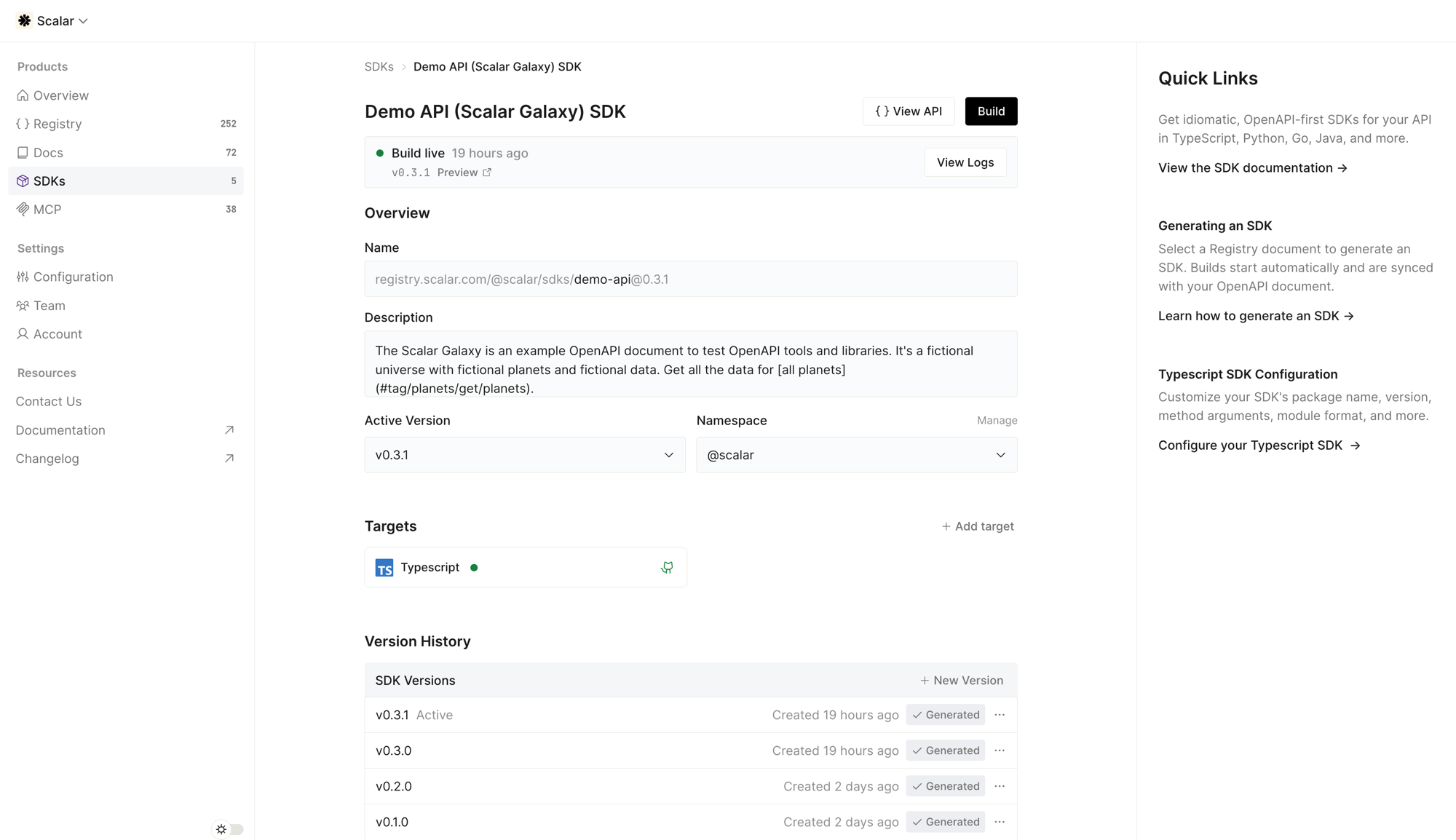
Enable publishing for a target
Turn on publishing for a target, either from the dashboard or in your SDK configuration. This is the single switch that wires everything up.
Build the SDK
Each build generates the SDK and opens a pull request against your linked repository's default branch. The pull request includes the generated .github/workflows so the publishing logic lives in your repo, not in a black box.
Merge the pull request
When you merge, Scalar creates a GitHub Release tagged vX.Y.Z for that version.
The release workflow publishes
The release triggers sdk-release.yml in your repository, which builds the package and publishes it to the registry. The publish step is idempotent: if that version is already on the registry, it is skipped, so re-merges and re-runs never fail or double-publish.
What gets generated
Every target with a linked repository gets two workflows committed alongside the SDK. They are normal, readable workflow files you can inspect (and edit) in your repo.
| File | Trigger | What it does |
|---|---|---|
.github/workflows/sdk-ci.yml |
push, pull_request |
Installs dependencies and builds the SDK so every build pull request is checked. |
.github/workflows/sdk-release.yml |
release: published |
Publishes the package to its registry. Only generated when publishing is enabled. |
VERSIONING.md |
— | Notes the versioning policy for the repository. |
Tag-served ecosystems (Go, Swift, Packagist) do not get a release workflow. For those, the vX.Y.Z Git tag and GitHub Release are the publish. See Package Registries.
Enable publishing
You can enable publishing two ways. Both set the same thing.
From the dashboard, open a target and toggle Publish to <registry> on merge under Git settings.
In your configuration, add a publish block to the target:
{
  "targets": {
    "typescript": {
      "packageName": "demo-api",
      "version": "0.3.1",
      "publish": {
        "npm": true
      }
    }
  }
}
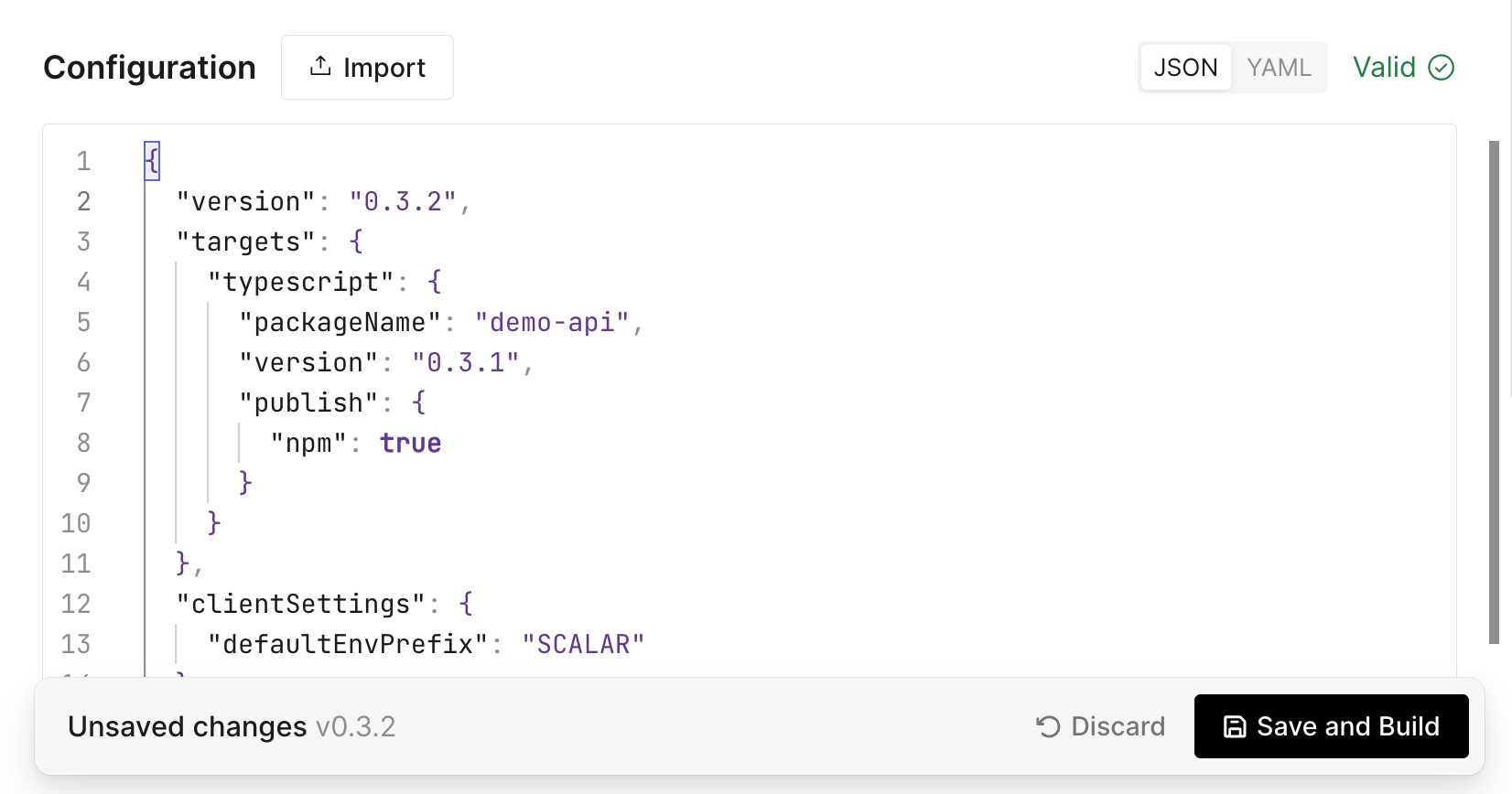
The registry key depends on the target (npm, pypi, cargo, maven, and so on). For the full list and per-registry options, see Package Registries. Each target documents its publish options on its configuration page.
Authentication
By default Scalar uses OIDC trusted publishing. The release workflow exchanges a short-lived GitHub identity token for a registry credential at publish time, so there is no token to create, store, or rotate. You register your repository and the sdk-release.yml workflow as a trusted publisher on the registry once.
Registries that do not support OIDC (and Maven Central, which needs GPG signing) use repository secrets instead. Setup for each registry is covered in Package Registries.
Versioning and releases
Versioning is driven by your configuration, not inferred from commit messages. The version that ships is the target's version (falling back to the SDK version). Bump it when you want a new release; every merged build is tagged and released as vX.Y.Z.
Scalar creates a GitHub Release for each version and maintains a CHANGELOG.md in the repository, so your release history lives in your repo next to the code.
Permissions
The generated release workflow requests only the permissions it needs:
permissions:
  contents: read
  id-token: write
  packages: write
id-token: write is what enables OIDC trusted publishing. The CLI target uses contents: write instead, because it uploads built binaries to the GitHub Release. Scalar never asks for organization-wide access to publish.
Next steps
Connect each target to a repository so builds sync as pull requests. See GitHub Repositories.
Register a trusted publisher or add the required secrets for your registry. See Package Registries.