How to migrate from SmartBear Swagger Studio (API Hub, ex. SwaggerHub) to Scalar
Last updated: September 2026
Scalar is a drop-in replacement for SmartBear's design, portal, and explore tools. The naming has changed a few times, so here is the map. SwaggerHub became API Hub for Design, and on November 13, 2025, SmartBear renamed API Hub for Design to Swagger Studio. The documentation portal is Swagger Portal (it replaced SwaggerHub's Docs Branding in 2024), and the API testing tool is Swagger Explore. SmartBear now groups them, along with Functional Testing, Contract Testing, and Catalog, under Swagger / API Hub. This guide uses "API Hub Design", "Portal", and "Explore" because that is what most existing projects still call them.
Scalar includes many of the same features as API Hub including:
- A centralized location to edit and collaborate on OpenAPI and Swagger documents.
- An interactive, customizable, and publishable API reference builder.
- Custom domains, theming, and logos.
- A built-in, local-first API client to help developers and end users call endpoints and test APIs.
Scalar is also free to get started with: the free plan covers up to 3 APIs with 1 editor seat, and the Pro plan is $150/month ($125/month billed yearly) with 5 editor seats included. If you want custom domains, GitHub sync, and a few other features, check out the Pro plan. SmartBear does not publish Swagger Studio prices on its product page, so compare against your own contract.
As a bonus, Scalar's API Reference and API Client are open source under the MIT licence, meaning you can self-host them and view all of the code on GitHub.
Scalar does not try to replace everything in the SmartBear suite. If you rely on Functional Testing or Contract Testing, keep those, or pick a dedicated testing tool; Scalar covers design, documentation, the registry, and the API client.
How to migrate from API Hub Design to Scalar
Migrating is as simple as exporting your API doc from API Hub Design and uploading it to Scalar.
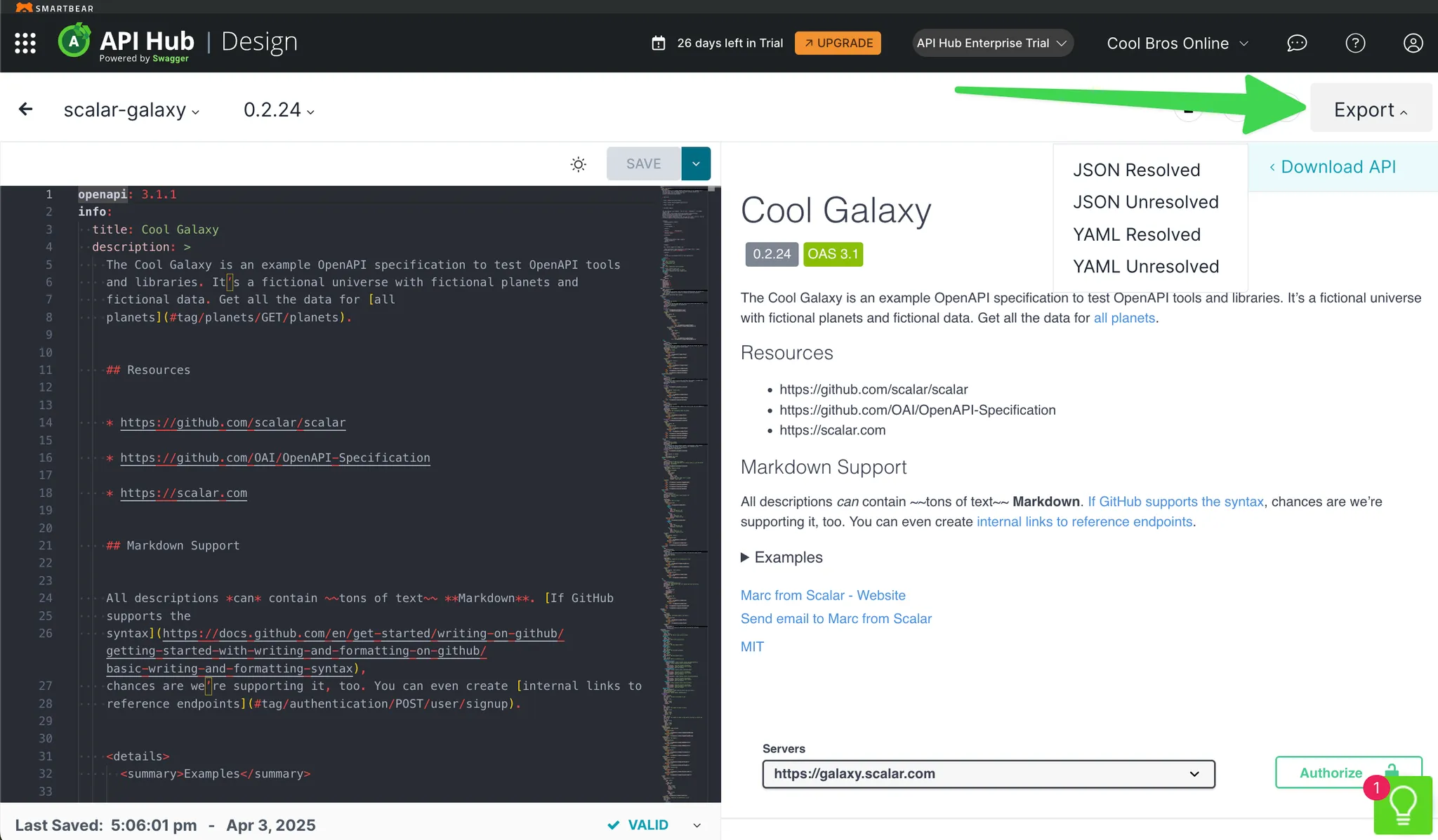
To start, go into Swagger Studio (API Hub Design) and find the API you want to export. On the editor page, open the Export menu, which lets you download your OpenAPI definition as YAML or JSON. Choose the unresolved version to keep $ref values to other docs, or the resolved version to include everything inline.
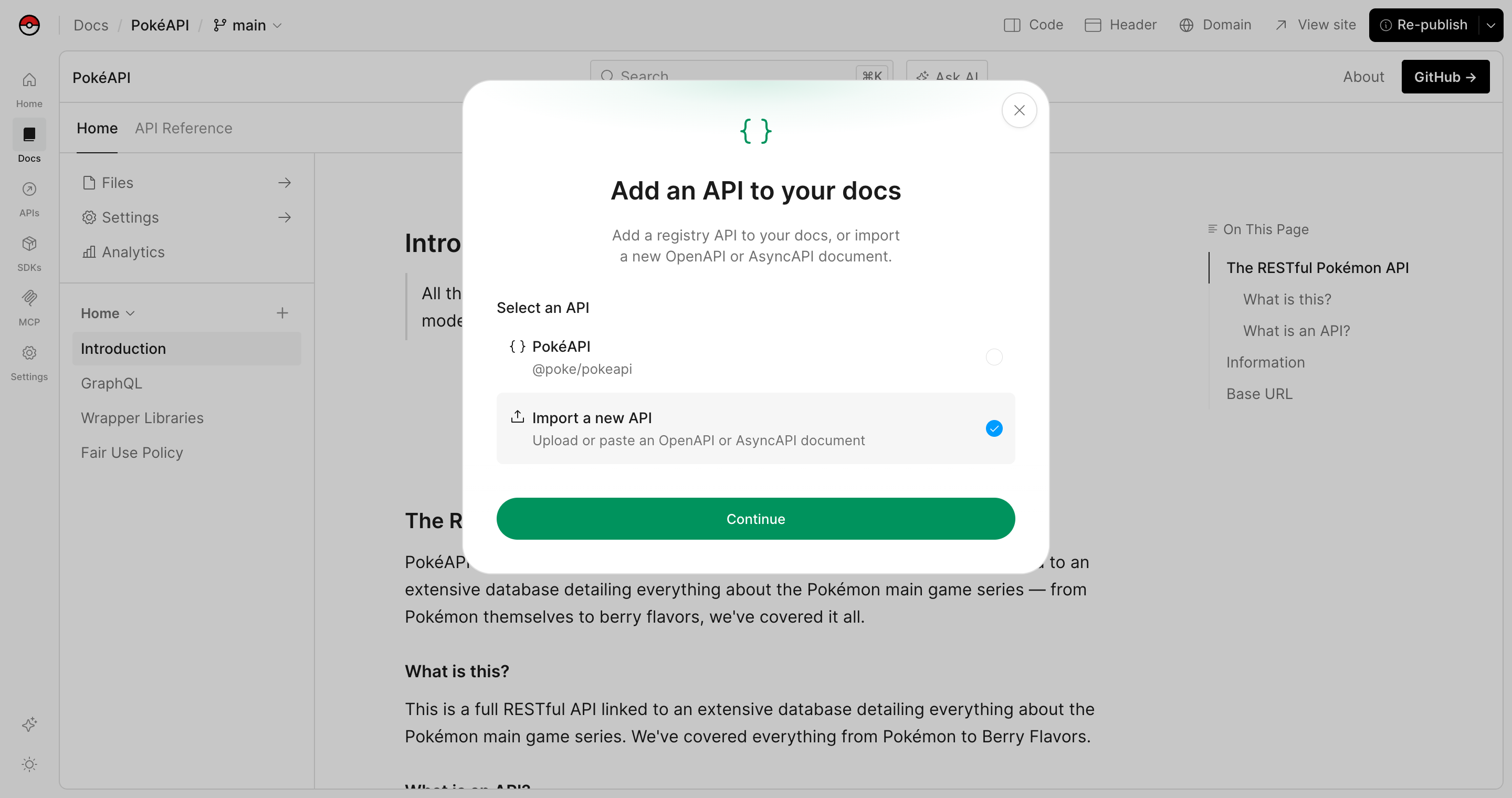
With this exported JSON file, you can sign up for Scalar, create a new docs project, then click + in the editor's sidebar and choose Add API Reference. Pick Import a new API, click Continue, and upload the file you exported from API Hub. This adds your OpenAPI document to your team's Registry and links it in your docs, ready to preview and publish.
How to migrate from API Hub Portal to Scalar
API Hub Portal enables you to publish an interactive version of your OpenAPI doc along with markdown guides.
In Scalar, you do not need to go to another product to do this. Just click Publish in the top right of the editor. The first time you publish, Scalar shows your site's visibility and domain so you can check them before it goes live. Set your subdomain or custom domain under Settings → Site.
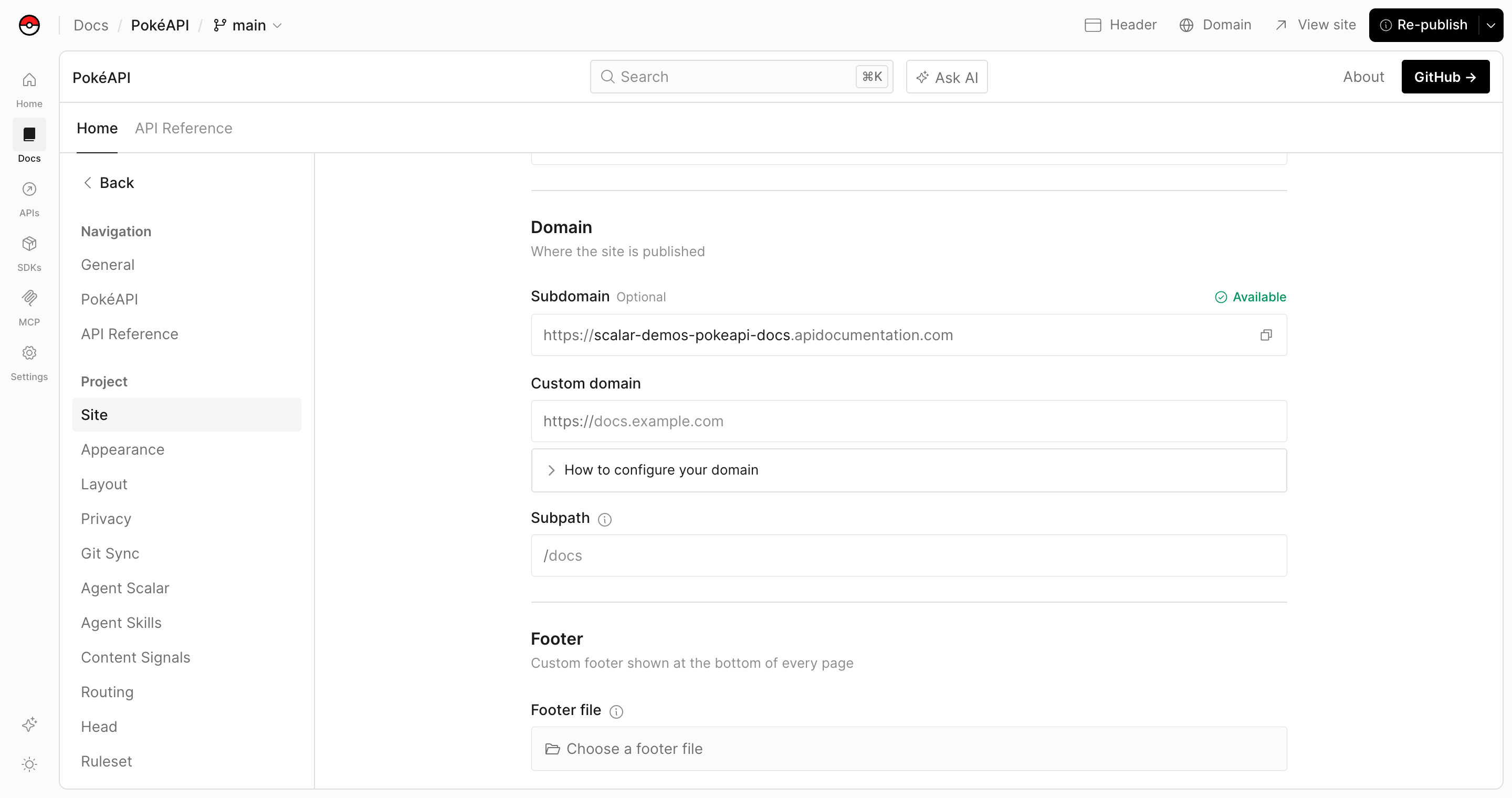
Adding guides is just as simple. Click + in the editor's sidebar and choose Add Page. To bring over Markdown from your API Hub Portal project, paste it into the editor's code view, or add the .md files to your project. Markdown pasted into the visual editor stays as plain text.
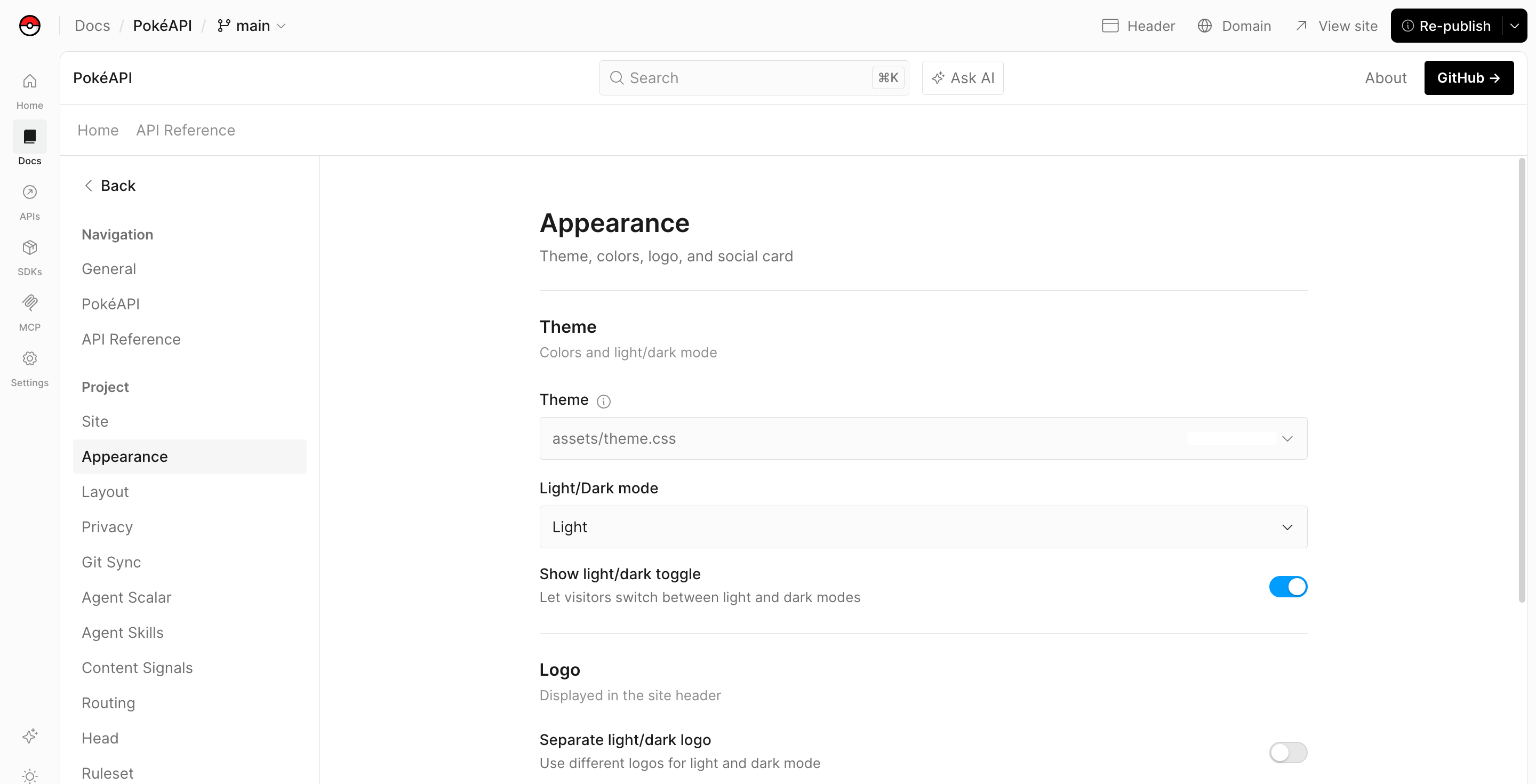
Just like API Hub Portal this is completely customizable. Change your logo, theme, footer, and versions from the editor's Settings, edit the header from the Header button in the editor's top bar, and configure everything else in scalar.config.json.
(Optional) Using Git Sync with scalar.config.json
If you prefer to manage your documentation via Git (similar to how API Hub Portal can work with version control), you can use Scalar's Git Sync feature. This allows you to keep your OpenAPI documents and Markdown guides in a Git repository and automatically publish when changes are merged.
To set this up, create a scalar.config.json file in your repository root:
{
  "$schema": "https://registry.scalar.com/@scalar/schemas/config",
  "scalar": "2.0.0",
  "siteConfig": {
    "subdomain": "name-of-your-api"
  },
  "navigation": {
    "routes": {
      "/": {
        "type": "group",
        "title": "Your API",
        "children": {
          "/guides": {
            "type": "group",
            "title": "Guides",
            "children": {
              "getting-started": {
                "type": "page",
                "filepath": "docs/getting-started.md",
                "title": "Getting Started"
              }
            }
          },
          "/api": {
            "type": "openapi",
            "filepath": "openapi.yaml",
            "title": "API Reference"
          }
        }
      }
    }
  }
}
Automatic deployment is the Publish on merge toggle under Auto-publish in the editor's Settings → Git Sync. It publishes your site whenever changes land on your tracked branch, and it is on by default. The Tracked branch is set on the same page.
How to migrate from API Hub Explore to Scalar
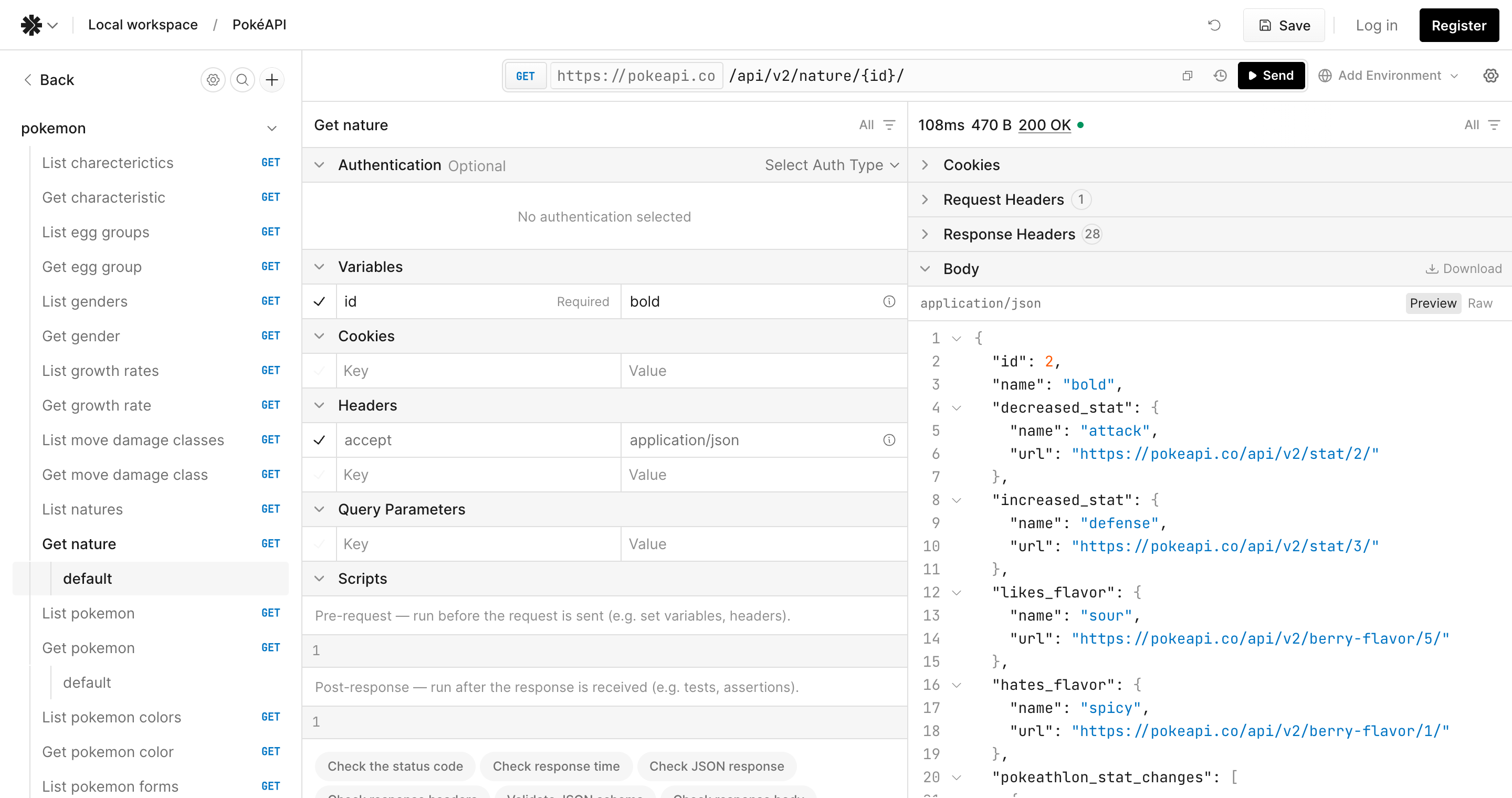
Scalar's API client is a direct replacement for API Hub Explore. Both you and your end users can get a version of it by clicking Test Request in the API reference or by going to the API client page. You can also download a desktop version.
Just like API Hub Explore, you can import existing API docs into the API client to get all the endpoints set up for testing. Once you have these, you can modify and send requests, add new routes, and much more to help explore and debug APIs.
Link APIs from Design
The Registry matches API Hub Explore's “Link APIs from Design” feature: store your OpenAPI documents once, version them, and load them into the API client or your docs from one place.
Frequently asked questions
Is Swagger Studio the same thing as SwaggerHub?
Yes. SwaggerHub was renamed API Hub for Design, and SmartBear renamed that to Swagger Studio on November 13, 2025. The steps on this page apply whichever name your account shows.
Do I have to change my OpenAPI documents to move to Scalar?
No. Export the document as JSON or YAML and upload it, or commit it to a Git repository and connect it with Git Sync. Scalar reads Swagger 2.0 and OpenAPI 3.x documents as they are.
What replaces Swagger Portal in Scalar?
Scalar Docs. Publish your API reference and Markdown guides from the same project, add a custom domain on Pro, and customise the header, logo, and theme.
What replaces Swagger Explore?
The Scalar API Client. It runs in the browser, inside your API reference, and as a desktop app, and it can import your OpenAPI documents so every endpoint is ready to test.
Can I generate SDKs from the same document?
Yes. Scalar generates SDKs from your OpenAPI document. TypeScript, Python, Go, Java, Kotlin, Ruby, and CLI are generally available; C#, PHP, Rust, Swift, Dart, and C++ are experimental.
Related
- Learn: What is an API reference? · What is an API client?
- Docs: Scalar Registry · Download the API client
- Product: Scalar Docs — design, publish, and host your API reference and guides in one project
SmartBear product names and features on this page come from SmartBear's Swagger product page and Swagger Studio documentation as checked on September 26, 2026. SmartBear has renamed these products several times and may do so again. If you find something wrong or out of date, please open an issue and we will correct it.