GitHub Repositories
Each target can be linked to its own GitHub repository. Once linked, every build syncs to that repository, and merging the release pull request is what triggers publishing. Linking a repository is the prerequisite for publishing, but it is useful on its own: it gives every generated SDK a home, a review step, and a history.
Connect a repository
Linking happens per target, so a TypeScript and a Python SDK can live in separate repositories.
Authorize the Scalar GitHub app
The first time you connect, GitHub asks you to install the Scalar app and grant it access to the repositories you want to use. Scalar only needs to read and write repository contents and open pull requests.
Select the organization and repository
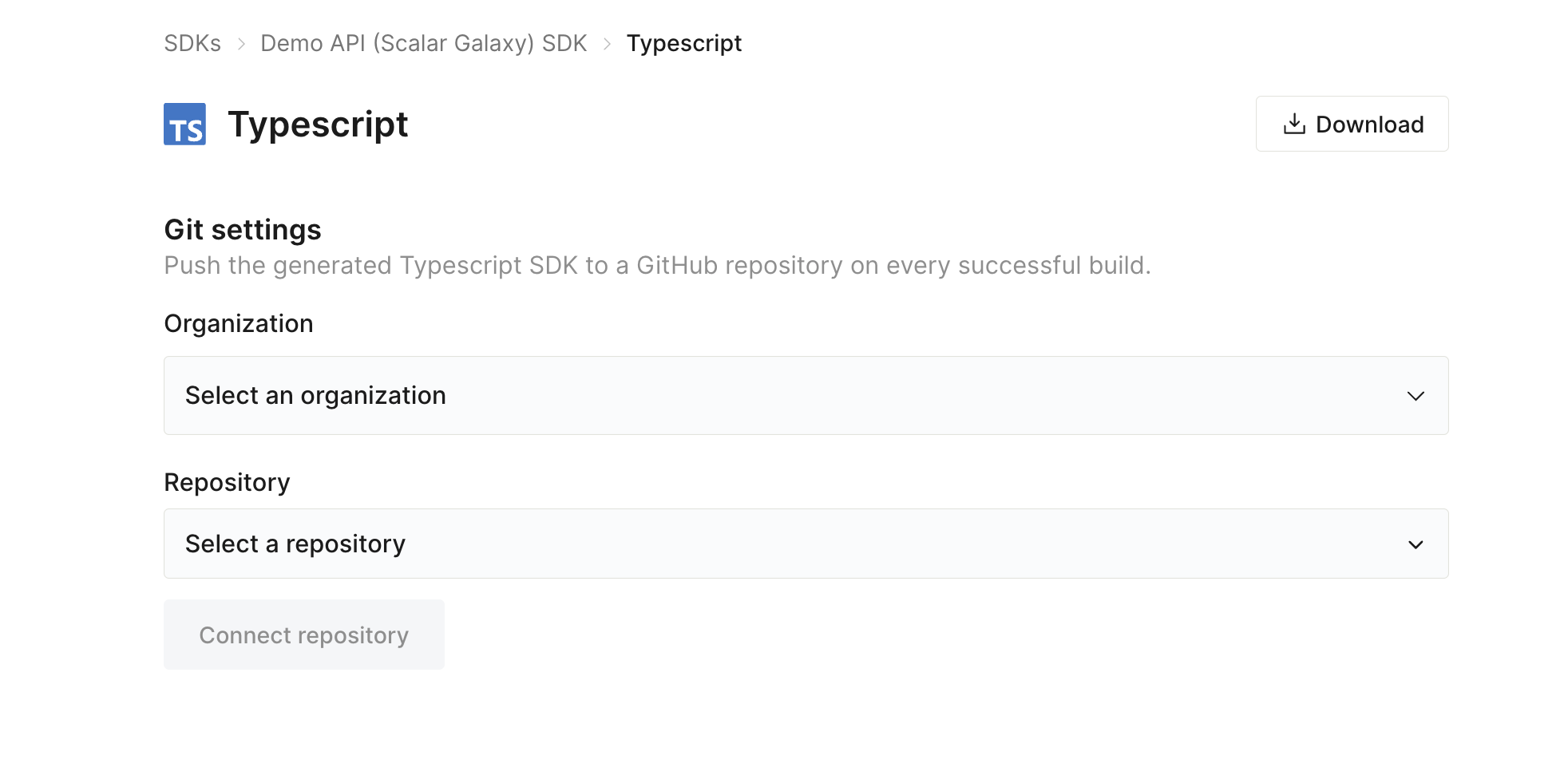
Open the target, then under Git settings choose the Organization and Repository to push the generated SDK to.
Connect
Click Connect repository. From now on, every successful build pushes the generated SDK to this repository.
How syncing works
Builds never commit straight to your default branch. The repository follows a three-branch flow that Scalar manages together with the generated workflows, all of which run on the default GITHUB_TOKEN. The only extra GitHub token you may need is HOMEBREW_TAP_TOKEN, for a CLI that updates a Homebrew tap in another repository. Registry and signing credentials are separate repository secrets, not GitHub tokens: see Adding repository secrets.
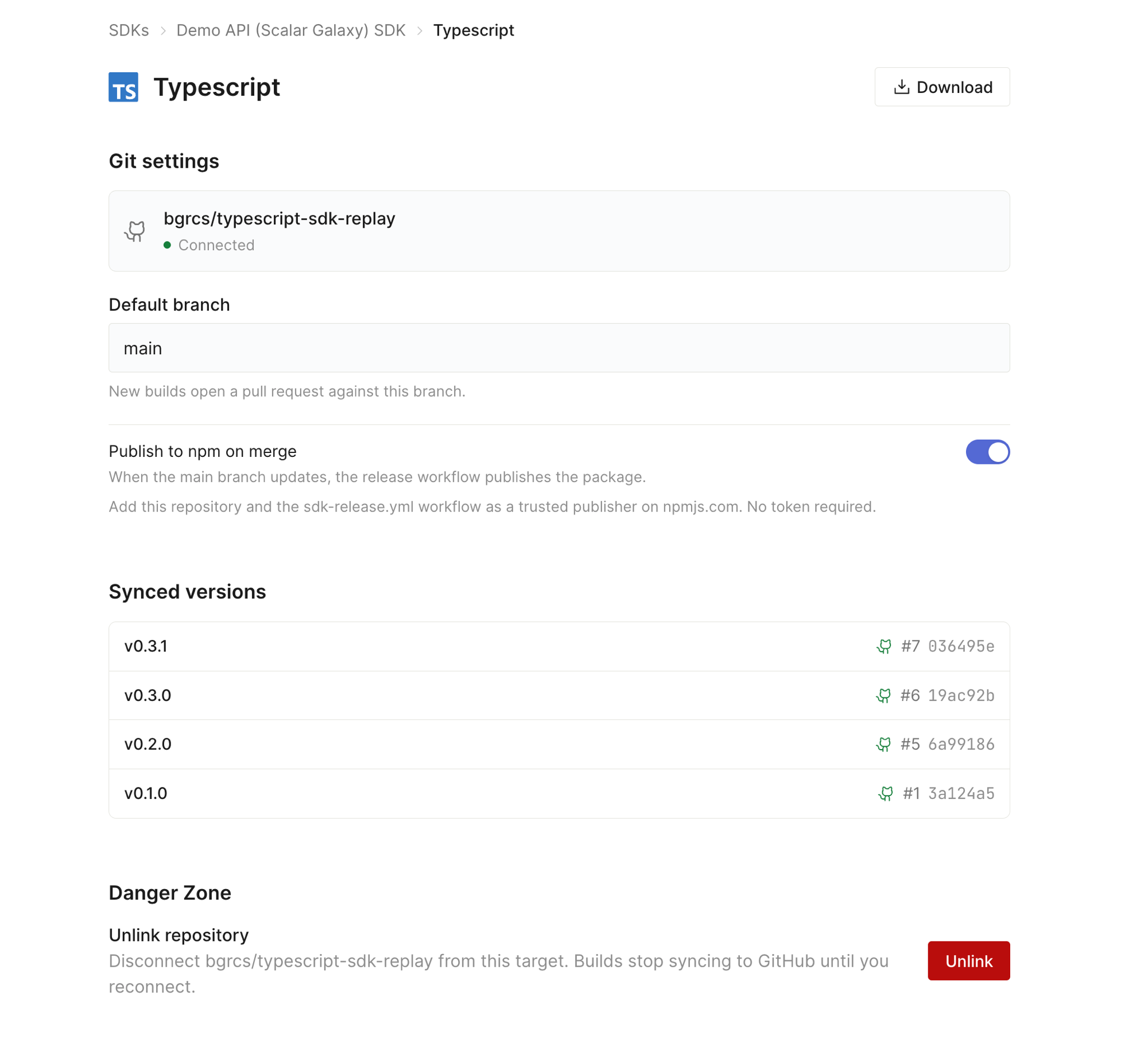
scalar-generatedholds pristine generator output. Scalar pushes here; you never commit to it.scalar-next(renamable withintegrationBranch) holds that output merged with your custom code. This is where you commit your own changes, directly or through pull requests, and where Scalar merges each regeneration.- The default branch (
mainunless you configure otherwise) only ever receives released states. Scalar keeps a release pull request open fromscalar-nextagainst it, so the diff you review is the entire pending release. Merging that pull request is what releases and publishes the version. scalar-merge-conflictcarries a regeneration that could not be merged cleanly; it arrives as a pull request for you to resolve.
Synced versions: the target lists each SDK version next to the pull request and commit that delivered it, so you can trace a published version back to its build.
Linking only controls where generated code goes. Turn on Publish to <registry> on merge (or add a publish block to the target) to also push the package to its registry. See Publishing.
Promotion
By default every successful build reaches production on its own: it pushes to scalar-generated, merges into scalar-next, and updates the release pull request. Set a target to promote manually and that last part waits for you.
A manual target still builds on every change, and its staging repository — a private playground that mirrors the latest build — is still updated. What waits is the push to the repository your team works in, until you click Promote to production.
Use it when generated output should be reviewed before it lands in your repository, or when you want to decide the moment a release pull request opens.
Choosing the mode
When you connect a repository
Promote manually sits under the organization, repository and default branch in the connect form. Leave it off for automatic promotion.
Or later, from repository settings
Open the target, select Configure on the Production row, and flip Promote manually. The change takes effect immediately; it is not tied to a new version.
Promoting a build
A build waiting in staging shows Promote to production on the Staging row. Promoting pushes that build's generated output to scalar-generated, merges it into scalar-next, and opens the release pull request — exactly what an automatic build does, at a time you choose. Your custom code on scalar-next is preserved either way.
The pipeline card only ever offers the newest build, and the action clears once you have promoted it, so an older build cannot be pushed over one production already has. The version history offers each staged build on its own row, and warns you when the one you picked has been superseded by a newer build.
Switching back to automatic
Turning Promote manually off ships the build already waiting, so production catches up instead of skipping it. Every build after that pushes on its own again.
Unlinking a repository clears the promotion mode along with the rest of the link, so a repository you connect later starts out on automatic promotion.
Configuration equivalent
{
  "targets": {
    "typescript": {
      "promotion": "manual"
    }
  }
}
| Property | Type | Description |
|---|---|---|
promotion |
"automatic" | "manual" |
When this target's builds reach its production repository. manual holds each build at staging until it is promoted. Defaults to automatic, which is also what an absent key means. |
Your custom code is preserved
You can edit generated files in your repository on scalar-next. Scalar performs a three-way merge on every regeneration, so your changes are carried forward into the next release pull request instead of being overwritten. Review it as usual; only genuine conflicts need your attention. See Custom Code.
Repository prerequisites
- Branch protection on
scalar-nextand the default branch must allow the Scalar app and thegithub-actionsbot to push, or be left unprotected. The default branch only ever advances by merging a release pull request, andscalar-nextreceives each released state back from the release workflow. - No Actions settings changes are required. The generated workflows declare their own permissions, and none of them opens a pull request, so Allow GitHub Actions to create and approve pull requests can stay off.
release-please.ymlasks forpull-requests: writeonly to update the labels on the release pull request it has just released; the release pull request itself is opened by the Scalar app.
Repository configuration
Linking from the dashboard sets the target's destinations in your SDK configuration. You can also set it directly:
{
  "targets": {
    "typescript": {
      "destinations": {
        "production": {
          "repo": "acme/acme-typescript",
          "branch": "main"
        }
      }
    }
  }
}
| Property | Type | Description |
|---|---|---|
repo |
string |
The owner/repo the generated SDK is pushed to. |
branch |
string |
The repository's default branch, which releases are promoted to. Defaults to main. Generated output itself always goes to the fixed scalar-generated branch. |
integrationBranch |
string |
The branch where generated output is combined with your custom code. Defaults to scalar-next. |
Adding repository secrets
OIDC trusted publishing needs no secrets, with two exceptions: NuGet's OIDC login reads your profile name from NUGET_USER, and npm and crates.io only accept a trusted publisher for a package that already exists, so their first release uses a token secret. Token-based publishing, and Maven Central's GPG signing, store credentials as secrets on the SDK repository. The generated workflows read them by exact name, so the name has to match.
Open the repository's Actions secrets
In the SDK repository on GitHub, go to Settings → Secrets and variables → Actions.
Create a new secret
Select New repository secret.
Name it exactly and paste the value
Enter the Name the workflow expects (for example NPM_TOKEN) and paste the value, then Add secret. Each registry's guide (see Package Registries) lists the exact name, and, where there is one, the other name the workflow also accepts, so a repository that already stores a credential under a common name from another generator (PYPI_TOKEN, GEM_HOST_API_KEY, HOMEBREW_TAP_GITHUB_TOKEN, …) needs no new secret.
Secrets are scoped to the repository. If you publish several targets from one repository, add each registry's secret to that same repository.
Unlink a repository
To stop syncing, open the target, select Configure on the Production row, and use Unlink. Builds stop pushing to GitHub until you reconnect. Code already in the repository, and anything already published, is left untouched.